Meta may highlight a promo code on your ads that you never planned to offer. It could be a code you created months ago, one Meta found in your ad copy, or one it crawled from your website.
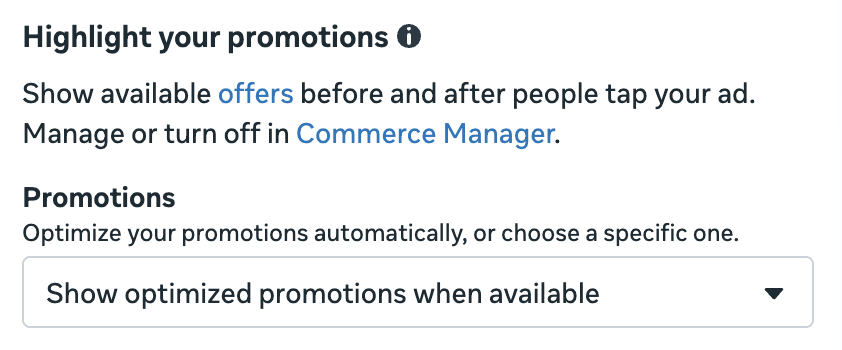
You may see this during ad creation in a section called “Highlight your promotions” (I’m seeing it above Advantage+ creative enhancements). Promo codes in Meta ads aren’t new, but this application of them is. Not all advertisers have it yet.
There are two related features here. One highlights promo codes before and after people tap your ad. The other offers a promo code in exchange for an email address. Both can be powerful if used intentionally.
The problem is that at least one of them may be on without an advertiser knowing, and I’ll get to those risks at the end.
Let’s take a closer look…
Highlight Your Promotions
Let’s start with the feature that can show promo codes on your ads automatically.
Here’s an example from Meta.

When using the in-app browser, the highlighted promo code will be applied automatically at checkout. Otherwise, Meta will surface a promo code that can be copied and applied later.
Set Up
You will need to use a campaign with a Sales objective where the destination is either Website or Website and App, and the performance goal is to either maximize the number or value of conversions.
If using the Website conversion location, the conversion event used must be one of the following:
- Add payment info
- Add to wishlist
- Add to cart
- Purchase
- Initiate checkout
- Start trial
- Subscribe
Browser add-ons must be off.
In the “Highlight your promotions” section of ad creation, the Promotions dropdown allows Meta to automatically choose a promotion to show people.
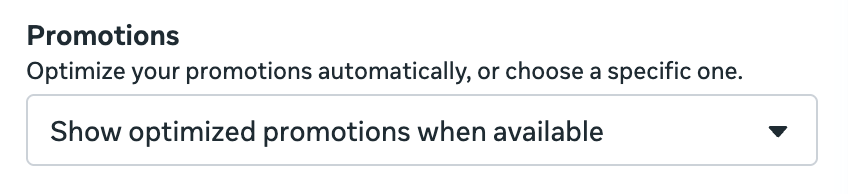
As you can see above, the dropdown is set to “Show optimized promotions when available.” The first time I saw this feature, that was the setting. You can switch an individual ad to a specific promotion you’ve created, but there’s no option for no promotion at all. So unless you turn this off at the account level (more on that below), Meta will either choose a promo code for you or show the one you selected.
Here’s how Meta describes it:
When you optimize your promotions automatically, we’ll pick the promotion most likely to get people to convert, without offering discounts to more people than needed.
That’s a really interesting element that’s easy to miss. Meta won’t always highlight the code, and it will depend on the likelihood of a conversion. This could allow you to maximize revenue.
Potential sources of these codes:
- You created them in Meta
- Meta found them in your ad copy or creative
- Meta crawled them on your website
- You created them in Shopify
The obvious potential problem is that if you have many promo codes floating around that haven’t expired, this setting allows Meta to display any of them.
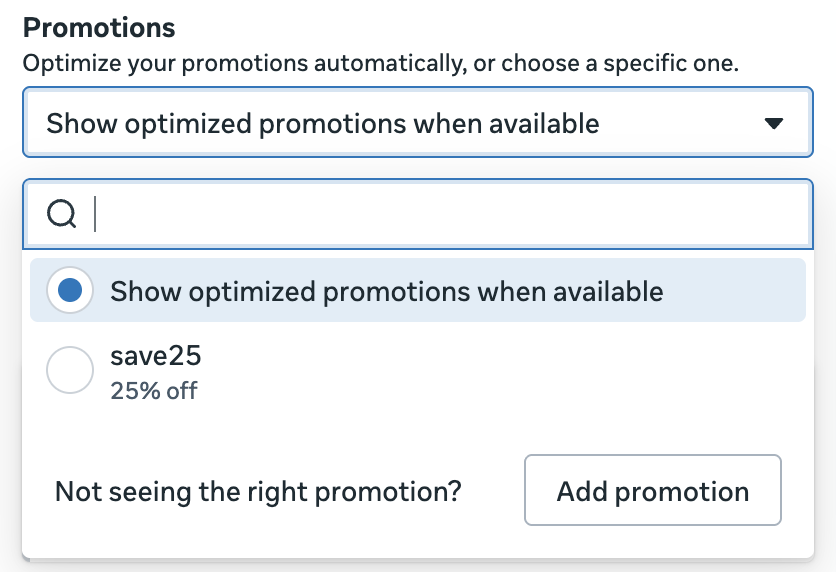
When you click the dropdown menu, you can manually select a promo code that you’ve previously created.
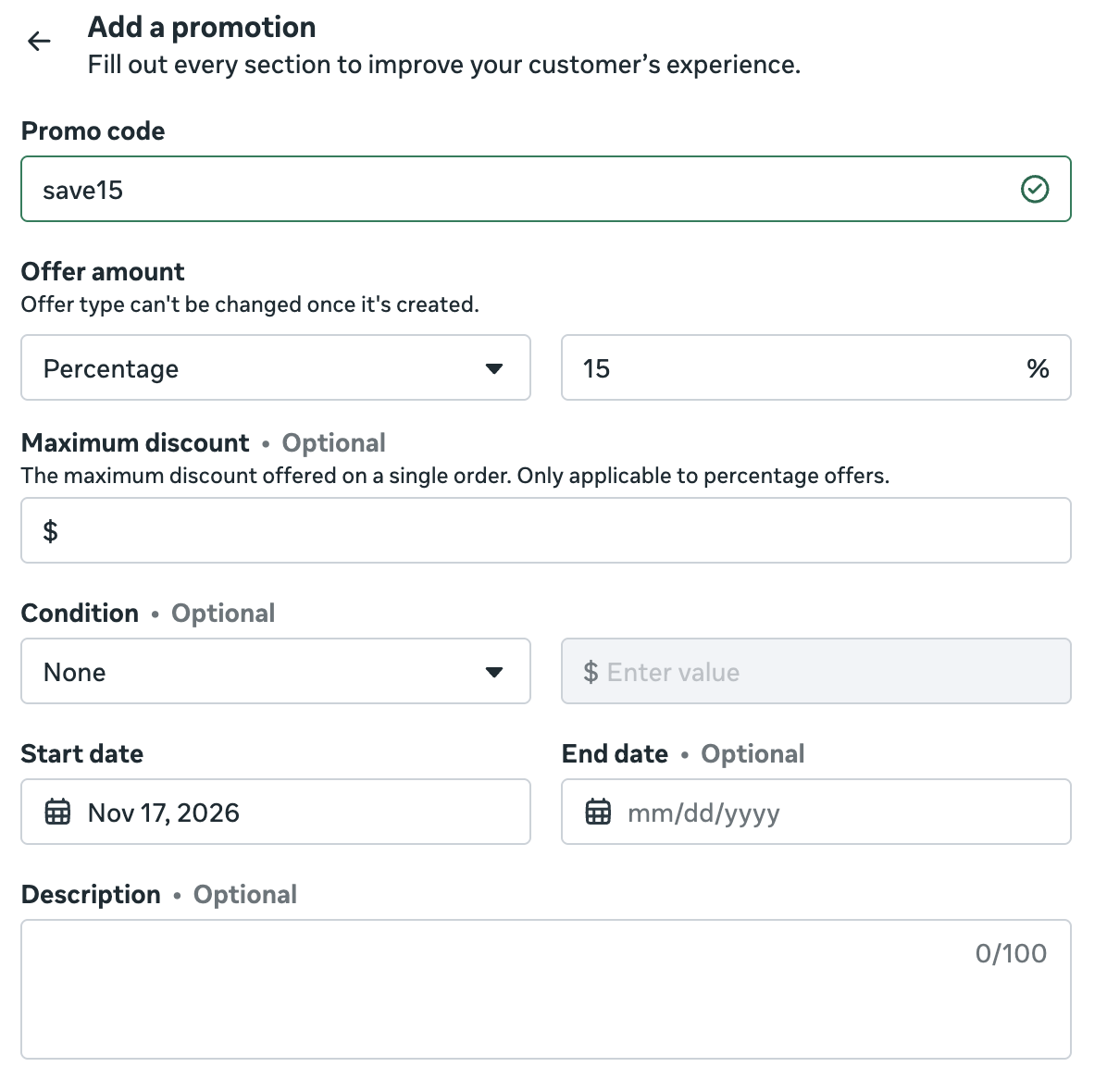
Click “Add promotion” to create a new one. Then you can create a promotion that includes a promo code, offer amount (percentage or fixed), maximum discount (optional), condition (optional minimum subtotal or quantity), start date, and optional end date.
You can also see a list of your available offers by clicking “Offers” in the text near the top of this section.

Turn Off
There’s no way to remove promotions from an individual ad while this setting is on. The dropdown only lets you choose between Meta’s optimized promotions and a specific promotion you’ve created. To show no promotion at all, you’ll need to turn it off at the account level.
Go to Settings > Offer Merchandising in Commerce Manager. The first section at the top is a checkbox to “let Meta automatically display detected offers in your ads.”

Uncheck the box for “Detected offers” and click “Save changes.” Meta will no longer automatically display offers it detects from your website and ads.
Once you do this, “Show optimized promotions when available” disappears from the Promotions dropdown. It defaults to “Select a promotion” instead, with nothing selected.
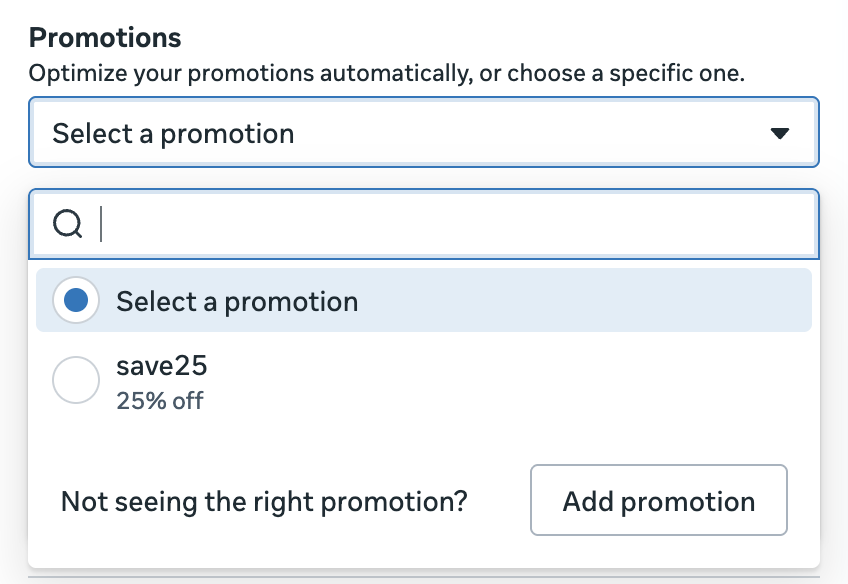
You can still manually choose a promotion you’ve created in Meta for an individual ad, but Meta won’t choose one for you.
Email Sign-up Offers
Email sign-up offers let you collect email addresses in exchange for a discount. Here’s how it works…
After someone provides their email address, they’ll see a promo code. When they check out on your website in the in-app browser, the code is applied automatically. Otherwise, they can copy and save it. Meta also disables your website’s own email pop-up for these visitors, so people are only asked for their email once.
Where the code comes from depends on your setup. If you’ve connected Shopify or WooCommerce, Meta shows a unique, single-use code to each new customer. Everyone else gets the public email sign-up offer they create in Commerce Manager or Ads Manager (more on that below). Make sure that code already works at your website’s checkout.
Here’s an example from Meta.
Set Up
Create a campaign with the Sales objective and Website conversion location. Email sign-up offers only apply to mobile placements. According to Meta, the feature is currently available to eligible businesses using Shopify or WooCommerce, but availability is expanding. I don’t use either one, and I’m seeing it. Browser add-ons must be off.
In the same area we were working on above is an optional section for “Email sign-up offer.”

Click “Add offer” to get started. You’ll get a simple pop-up that looks like this…
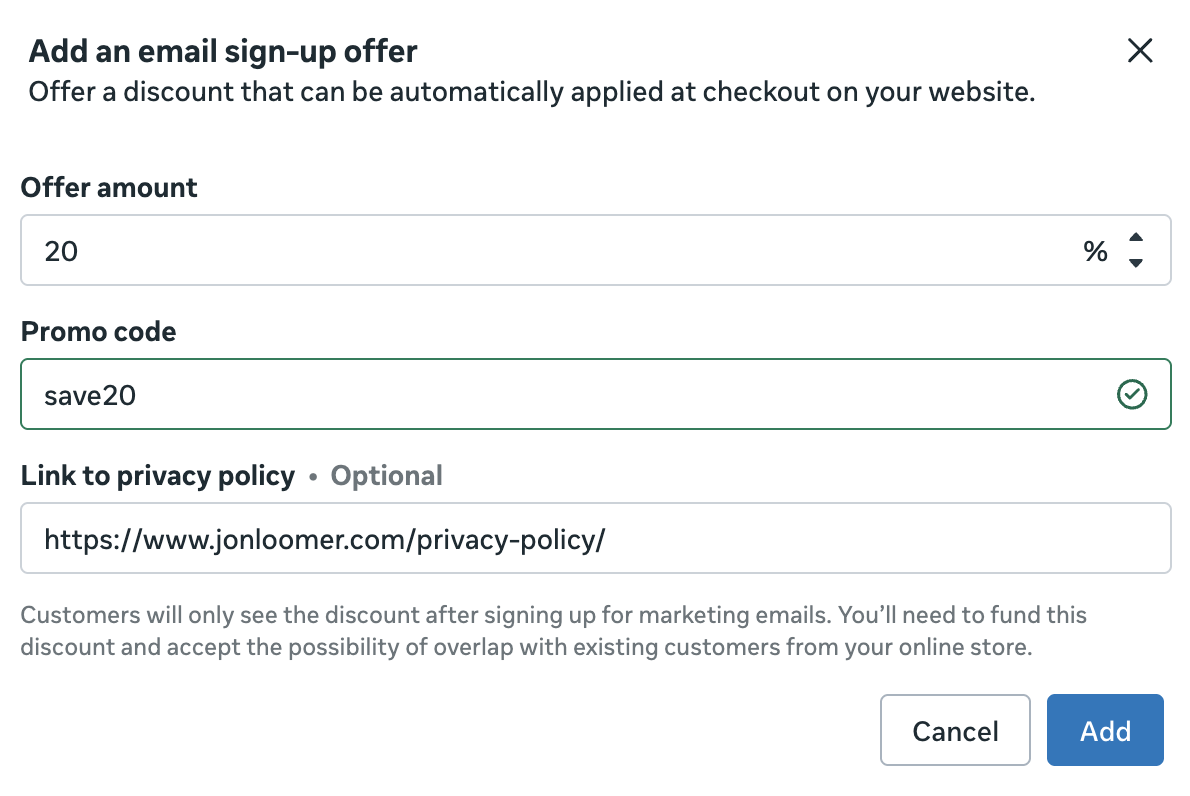
Provide the offer percentage, promo code, and a link to your privacy policy. Once you’ve created an email sign-up offer, that section will indicate that the offer is on for all your ads that lead to your website.
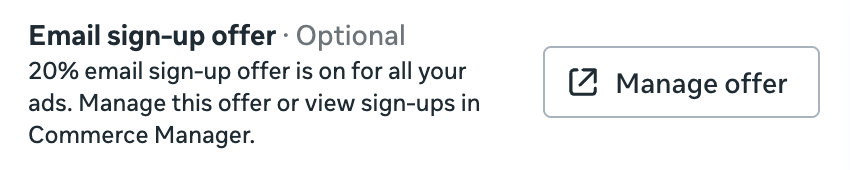
Click “Manage offer” and you’ll be taken to a page in Commerce Manager that allows you to control some details.
Choose the percentage or fixed amount of the offer…

Choose the offer destinations (Website or Shop).

And you can choose which products the offer applies to in your catalog.

Access Your Customer Emails
If you’ve connected your Shopify account, emails are synced directly to the “Customers” list in Shopify. Otherwise, collected email addresses will appear in Leads Center and can be synced to your CRM using Meta’s CRM integrations. More info here.
Turn Off
Email sign-up offers aren’t on by default until you create one. But once created, it will be on for all future eligible ads.
Like highlighted promotions, these are controlled at the account level. To turn this feature off, go to Settings > Marketing in Commerce Manager and uncheck both Website and Shop under “Offer destination.” Then click “Save” at the bottom.

The Risks
Both of these could be incredibly powerful revenue and list-building tools, especially for advertisers using Shopify, where single-use codes and email syncing make the experience seamless. The problem, unfortunately, is related to the automated aspect of highlighted promotions and that it doesn’t require advertiser intent.
When I first stumbled on highlighted promotions, the feature was automatically on. I have no idea what would have happened if I had published the ad, since being “on” doesn’t mean that Meta will automatically highlight promo codes. That’s part of the beauty of this, since Meta will only highlight a promo code if it’s likely to drive a conversion.
But maybe you created promo codes that are no longer valid, and you never set an expiration date. Or maybe you created promo codes on your website, but you don’t intend to offer them for the product you’re promoting. In theory, Meta could highlight those promo codes anyway. Unless, of course, you’re on top of this.
As you can see in my instructions above, you can turn these features off. And you should do just that if you have no intention of offering a promo code.
Having these automatically sourced feels incredibly dangerous for several reasons. Your ad may already feature a promo code, and Meta could theoretically offer a different one. Or if Meta highlights a code that isn’t functional for that product or has since expired, it will create frustration for the potential customer (and potentially additional cost for you).
But assuming you know this is on, create promo codes, confirm they work, and want them to be offered? Yes, this could be amazing. Meta could experiment with different promo codes and offers. And the beauty is that if it’s determined you’ll get the sale without it, it could even maximize your return.
Maybe I’m missing something, and the risks aren’t as great as they appear. If this is off by default and can be turned on, I’d be a much bigger fan.
Your Turn
Do you have this feature? What do you think?
Let me know in the comments below!