


Meta advertisers are tired of turning off creative enhancements. I hear it all the time, and this cry has only become louder during the past year.
It’s understandable. Say what you will about whether you need to turn enhancements off (I’ll get to that), but the number of Meta’s tweaks and adjustments that make your ad something that you or a client never approved is staggering. I’m covering 47 of them in this post, and I’m surely missing some.
I do think most advertisers overreact to many of these enhancements, and they should probably just leave them on rather than fight it. Some can be customized to better fit their needs. But there absolutely are examples when many should be turned off, and it often depends on the situation.
Some of these enhancements are well known to advertisers because they’re obvious steps in the ad creation flow. Others are buried settings that are easy to miss. We’re not going to miss them today.
Let’s go through all 47 of the possible enhancements you may encounter, what they do, whether you can turn them off, and how I approach them. I’ll also finish with my general recommended approach to these enhancements.
Settings: Extensions
There are several settings that impact how various enhancements appear. These Extensions are found during the first step after uploading an image or video.
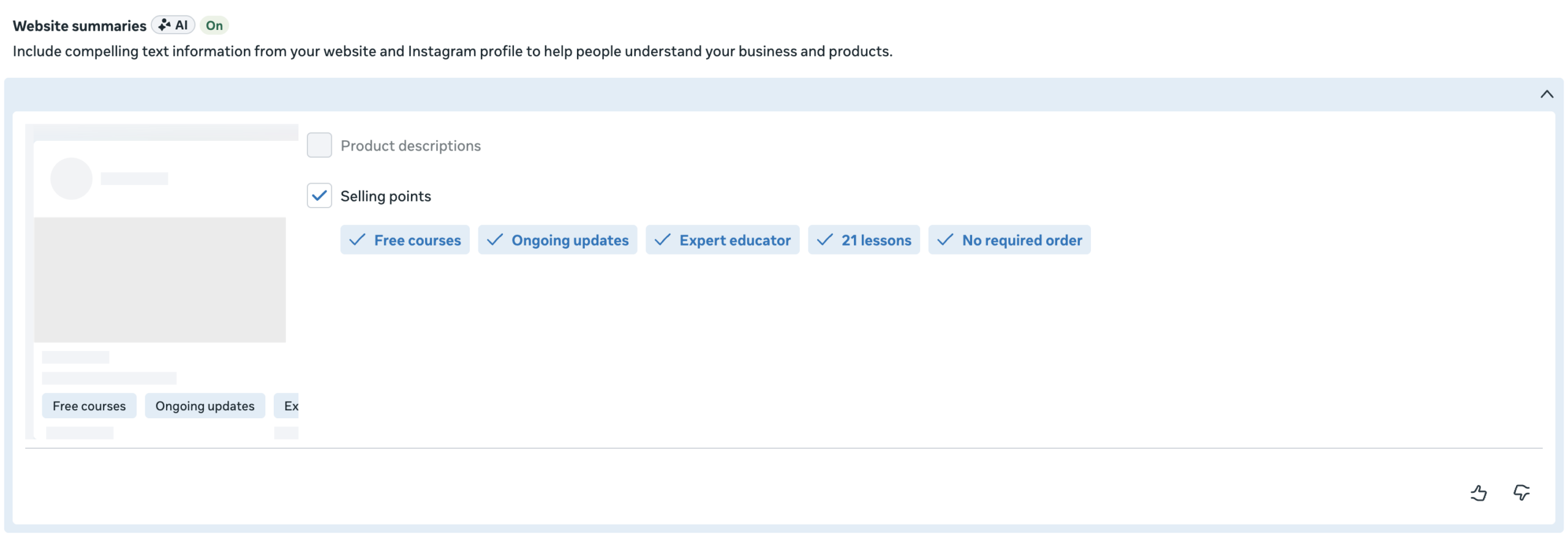
1. Website Summaries: Website Summaries are generated with AI based on information from your website and Instagram profile. These key words and phrases are highlighted under your ad.
On/Off: You can turn off summaries by unchecking it or remove individual highlights by clicking on the ones you don’t want. I tend to leave this on.
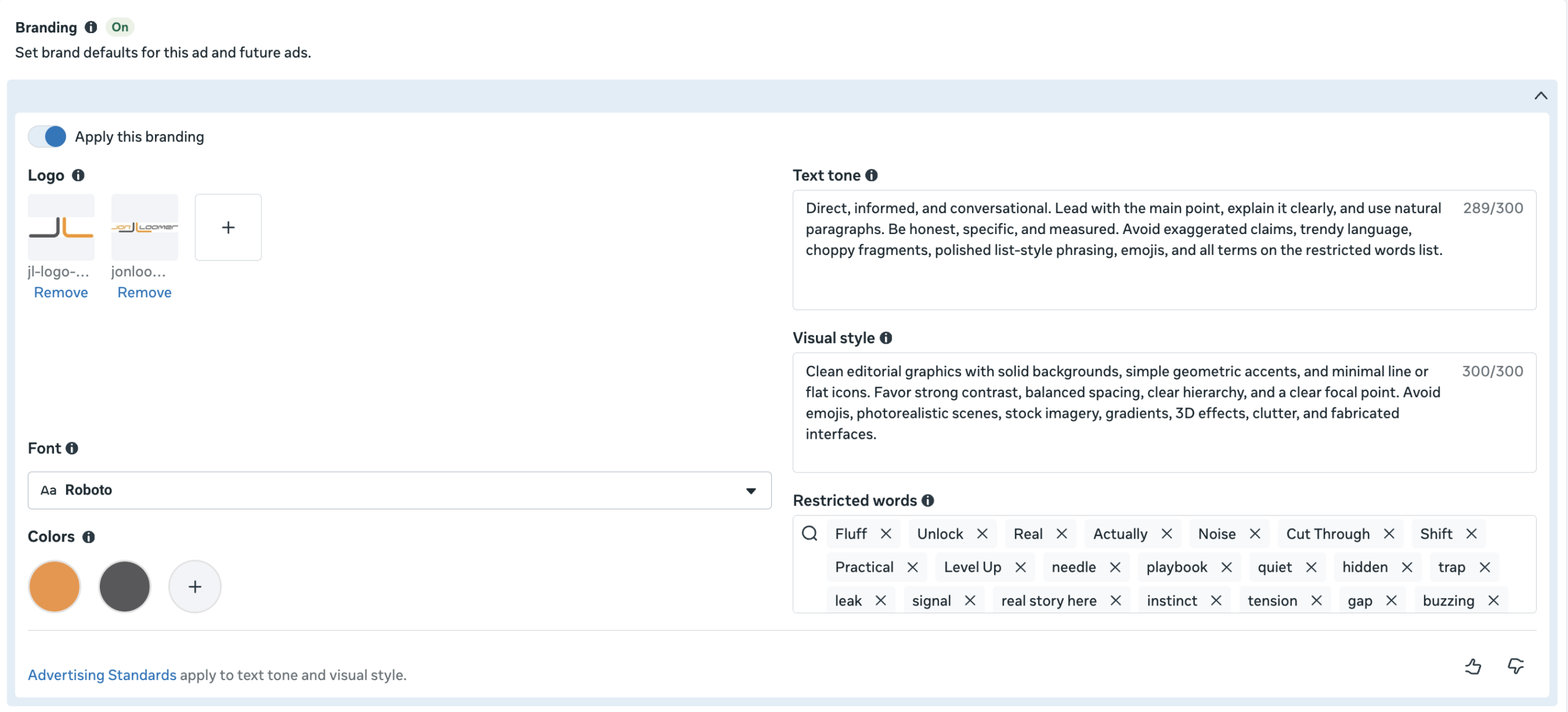
2. Branding: This step is often missed, but it has a huge impact on enhancements. Provide your company logo, font, colors, and visual style to influence appearance. Use text tone and restricted words to impact AI-generated text.
On/Off: This isn’t something that can be turned off, but you need to dedicate some time to defining your branding.
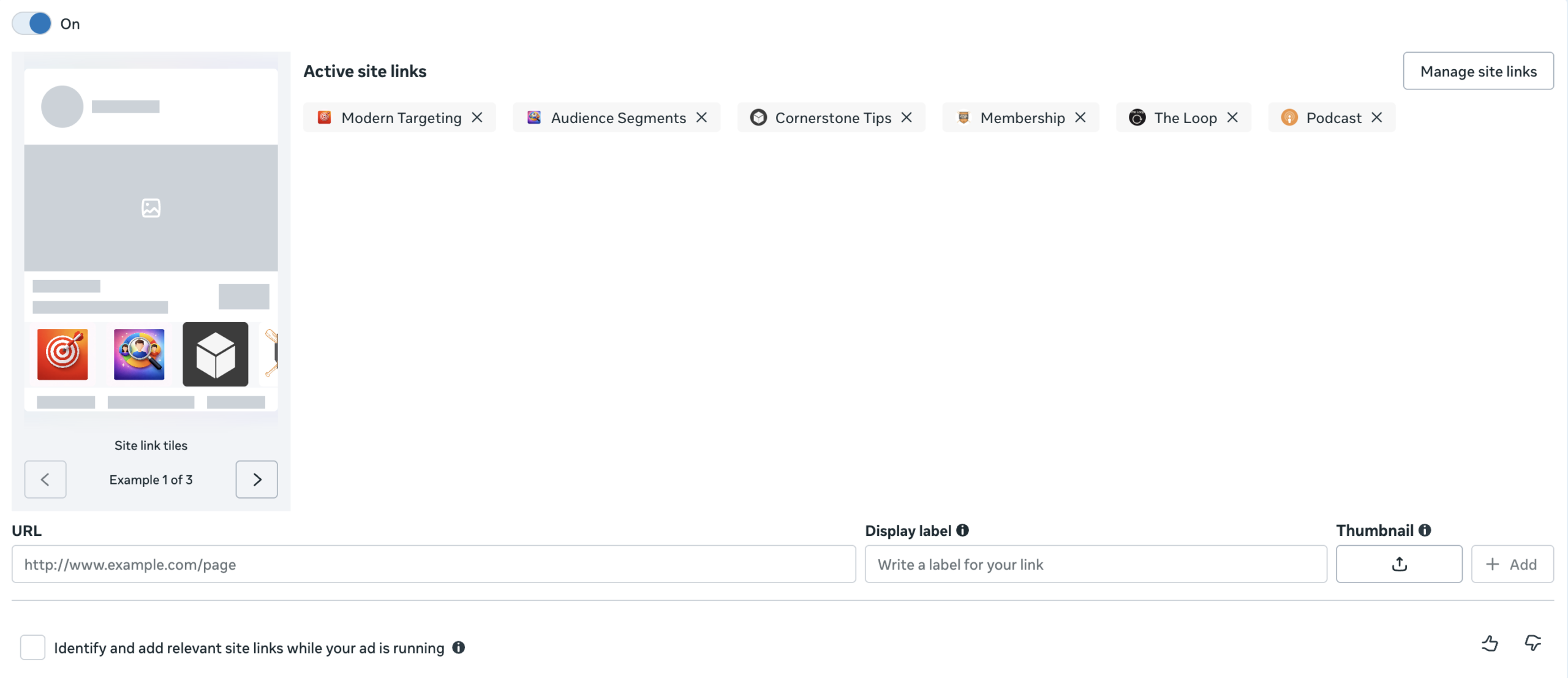
3. Site Links: Meta can identify important Site Links from your website that could be highlighted in various enhancements. If you don’t edit these, you’re putting an awful lot of trust in Meta’s automated systems. You can control the links that are featured, labels, and the icons used for them.
On/Off: You can turn this off, but I tend to leave it on and assess each individual enhancement that can use Site Links. I also customize each one.
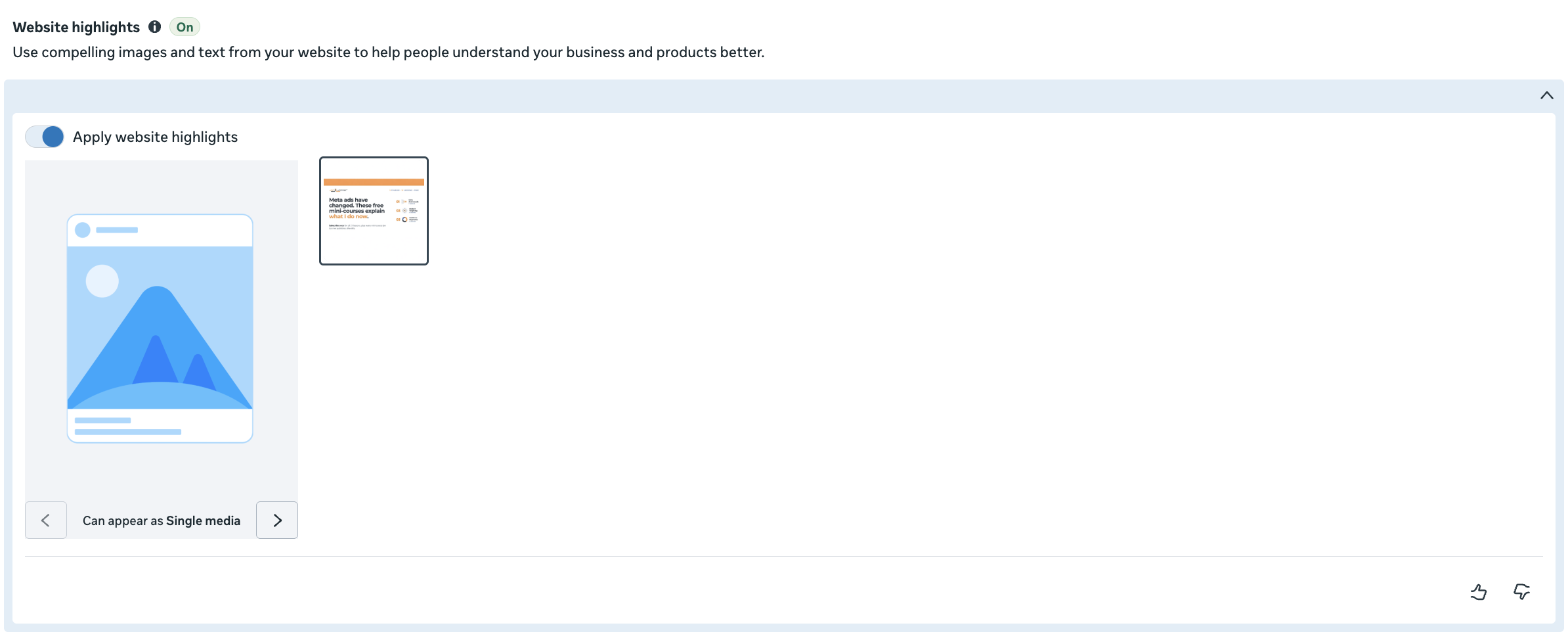
4. Website Highlights: Meta will pair images with headlines and descriptions from your website when available. You’ll see Website Highlights when using certain Interactive Experiences (we’ll cover those later).
On/Off: You can turn this off, but I tend to leave it on as long as Meta is able to turn up some decent highlights.
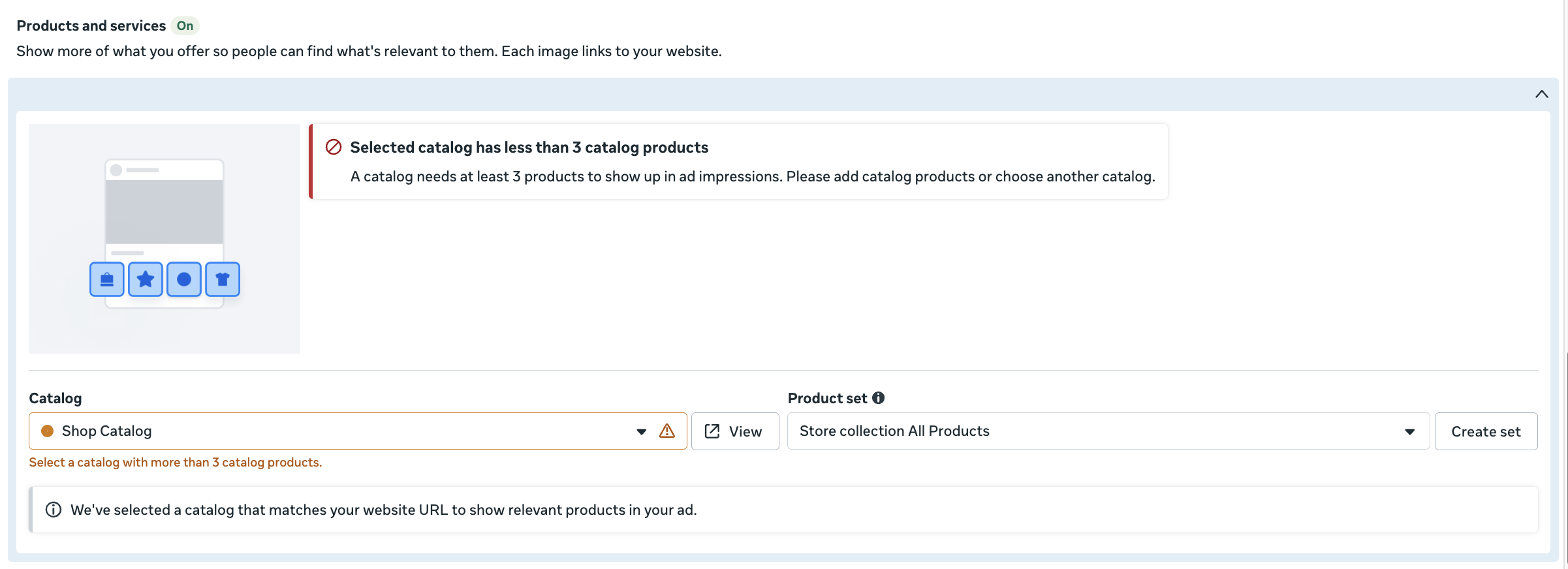
5. Products and Services: Select products from a catalog and product set that can be surfaced in various enhancements.
On/Off: This can’t be turned off, but you can turn off the individual enhancements that use your catalog.
Personalized Destinations
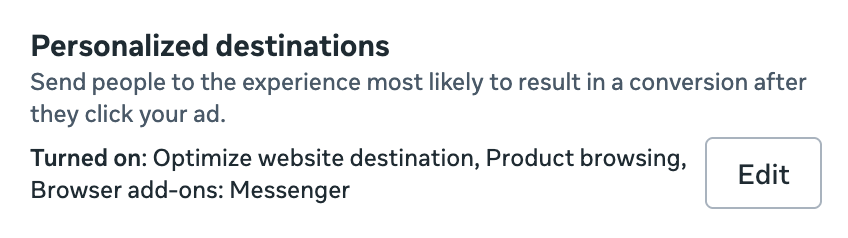
I haven’t figured out when Meta groups these settings in an easily ignored text block, when they’re made more visible, and when some of these settings aren’t available at all. But beware when it appears like this under the link…
6. Optimize Website Destination: When this is on, you can have Meta choose to send people to another page on your website depending on where they’re likely to convert.
On/Off: Yeah, I don’t get this one. I get that Meta should only send people to a different page if it’s likely to convert, but this feels incredibly risky. I keep it off.
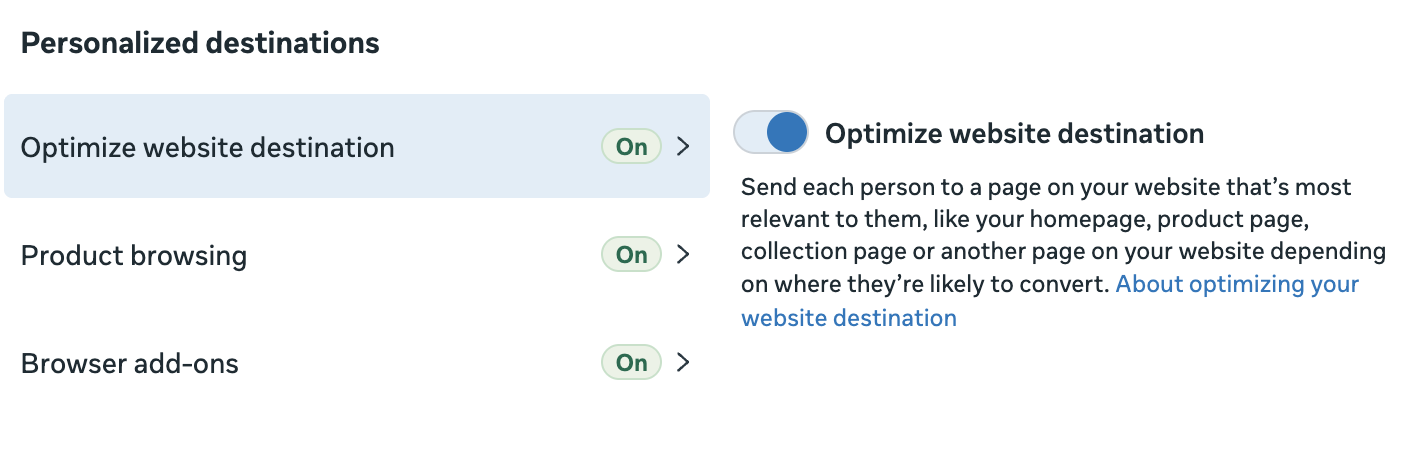
7. Product Browsing: Send people to a browsing experience on Facebook or Instagram with product details and personalized recommendations when they click your call-to-action button.
On/Off: Once again, this is something that requires some convincing evidence of its effectiveness before turning it on. When I provide a URL, I want to send people to it. I leave this off.
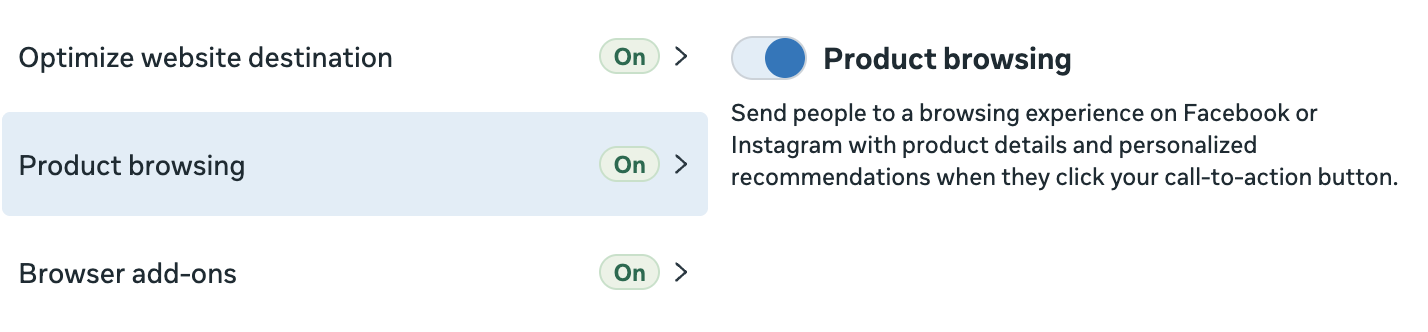
8. Browser Add-Ons: You can help people connect with you by adding a contact method in the in-app browser on Facebook, Instagram, Messenger and Threads. Common examples are instant forms and Messenger.
On/Off: It seems that Meta always wants the instant forms browser extension on, and I don’t get it. They even want it on when I send people to a landing page for a lead magnet. I can see one of these making sense for a high ticket item, but otherwise I always keep it off.
Advantage+ Creative Generation
There are several AI generation options to consider that pop up during the ad creation process.
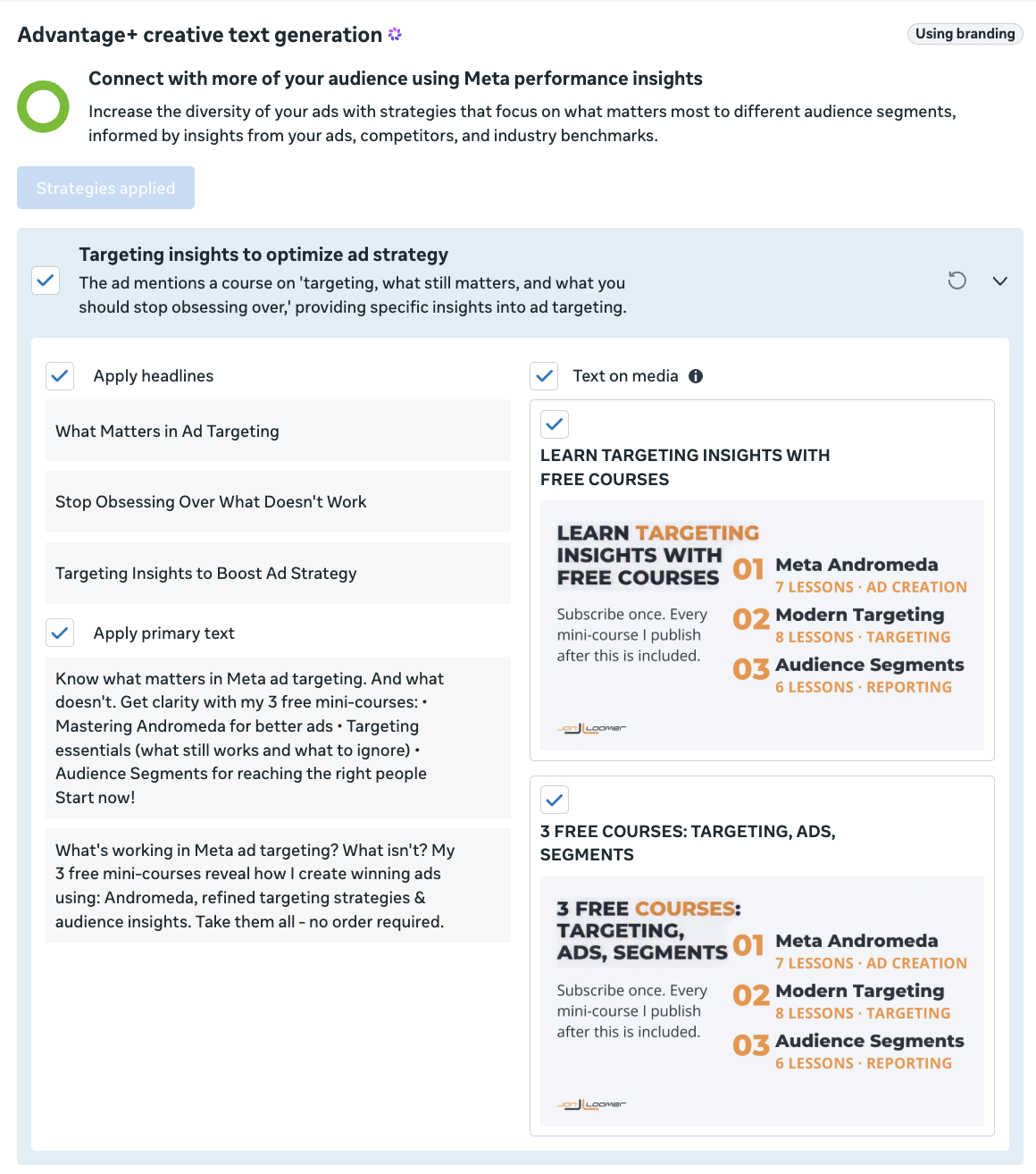
9. Text Generation: Meta will use AI to generate additional primary text and headline options around new messaging angles. This is where your text tone definition in Branding is applied. When possible, Meta will also generate new images based on your original image that feature text from the proposed text angles.
On/Off: While output from AI-generated text was originally awful, I’ve found myself more willing to accept these lately. But I’ve also had mixed results since it seems Meta doesn’t always follow Branding guidelines. This is an opportunity to diversify text and creative, so I would not automatically turn it off.
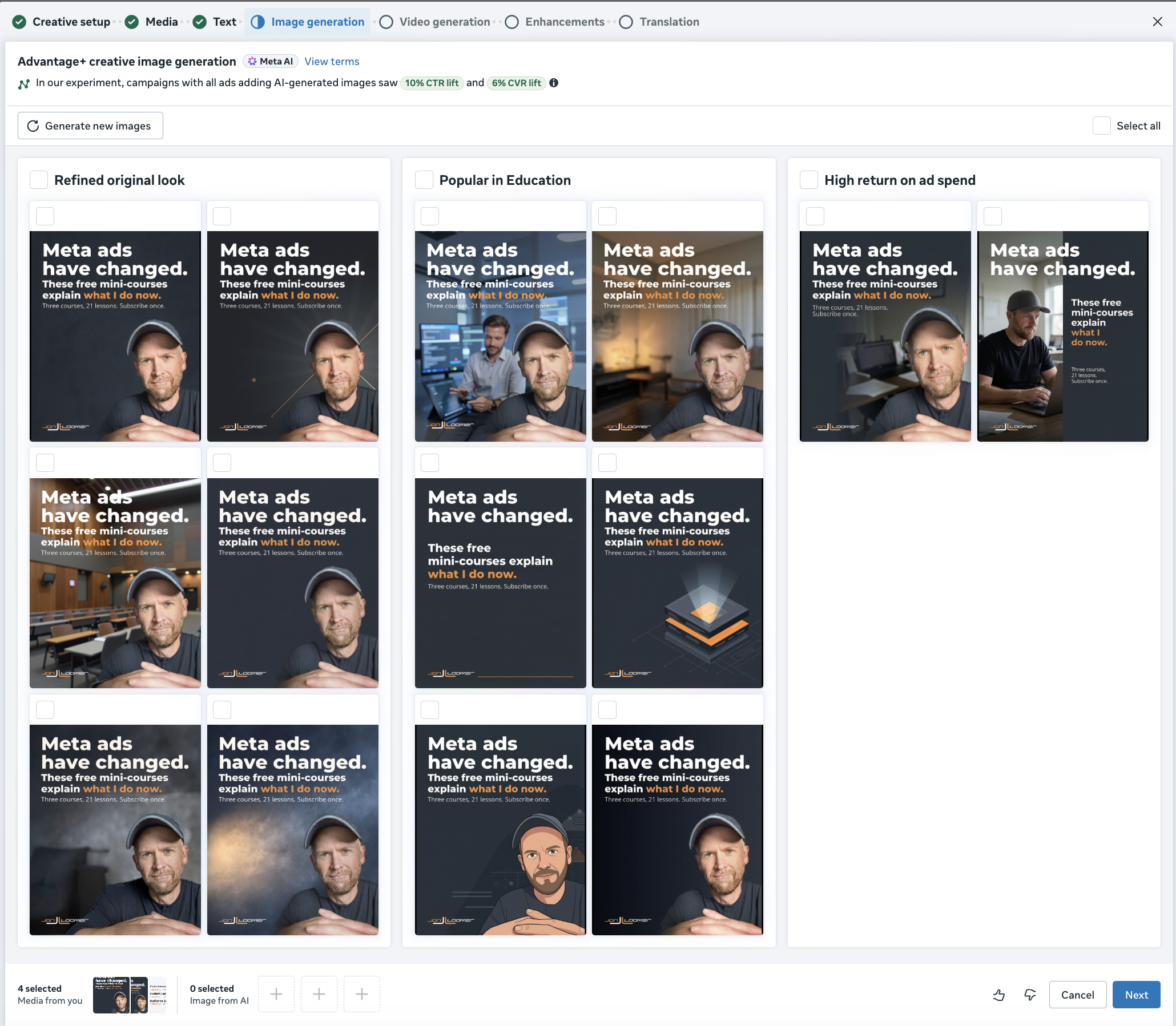
10. Image Generation: Meta will use AI to generate new image options based on your original image and text. I’ve found that Meta tends to base this regeneration off of the first image you provide.
On/Off: Output has gone from “horrendous” to “sometimes acceptable,” though the times I’m most likely to accept Meta’s AI-generated images are when the differences from my original creative are minimal. This is another opportunity to diversify creative, so I try to accept at least a couple of these if I can.
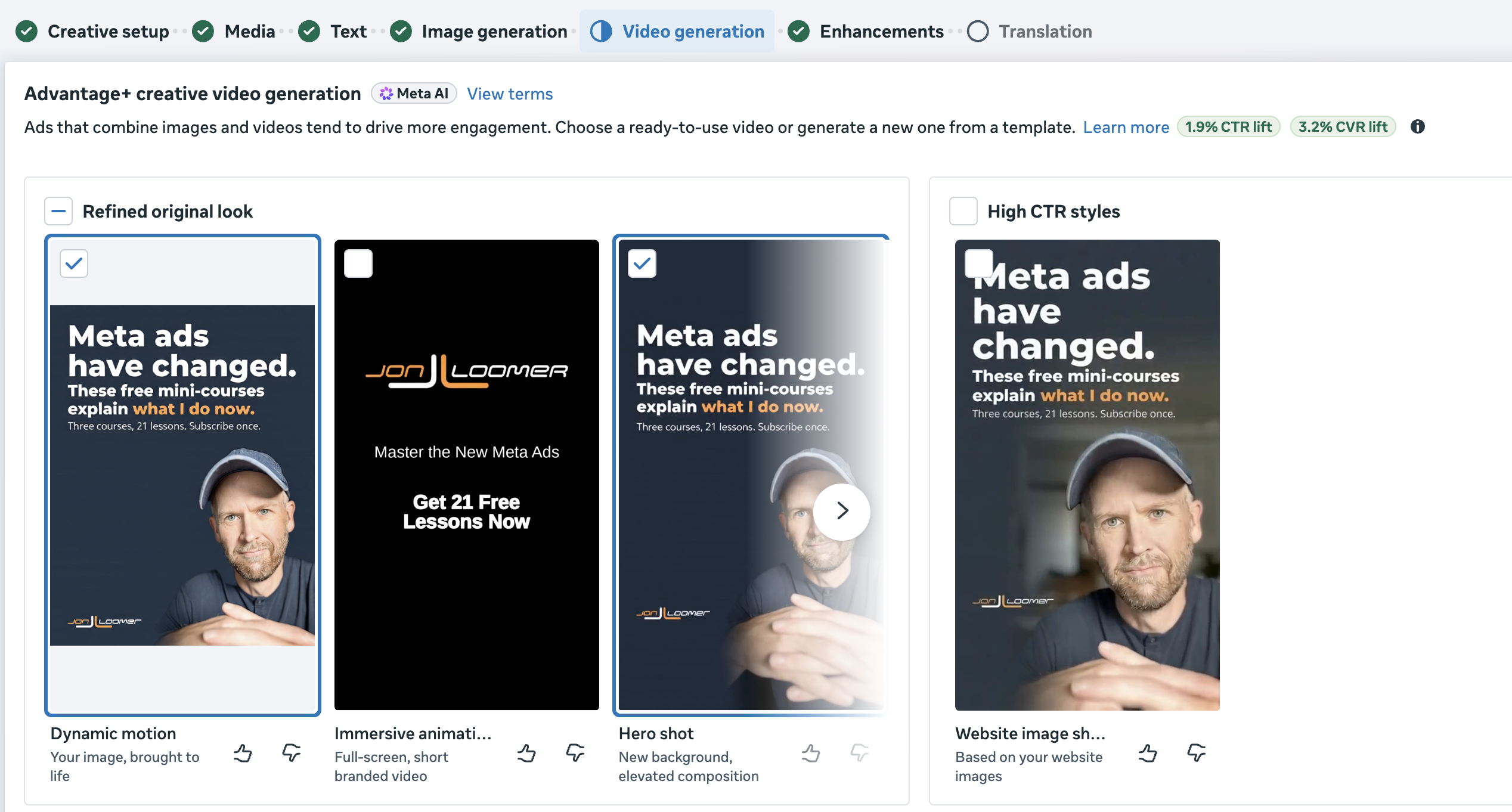
11. Video Generation: Meta will generate several videos for you based on your original image and text. These videos use proposed messaging angles and scenes.
On/Off: This is interesting, but I automatically turn anything off that uses fake people in a scene. I’ve found this most useful when Meta will essentially turn a static image into a video by adding movement. For all of the various video options, you can edit and customize the scenes, images used, and messaging. It can also be a lot of work, so I tend to only accept what looks okay out of the box.
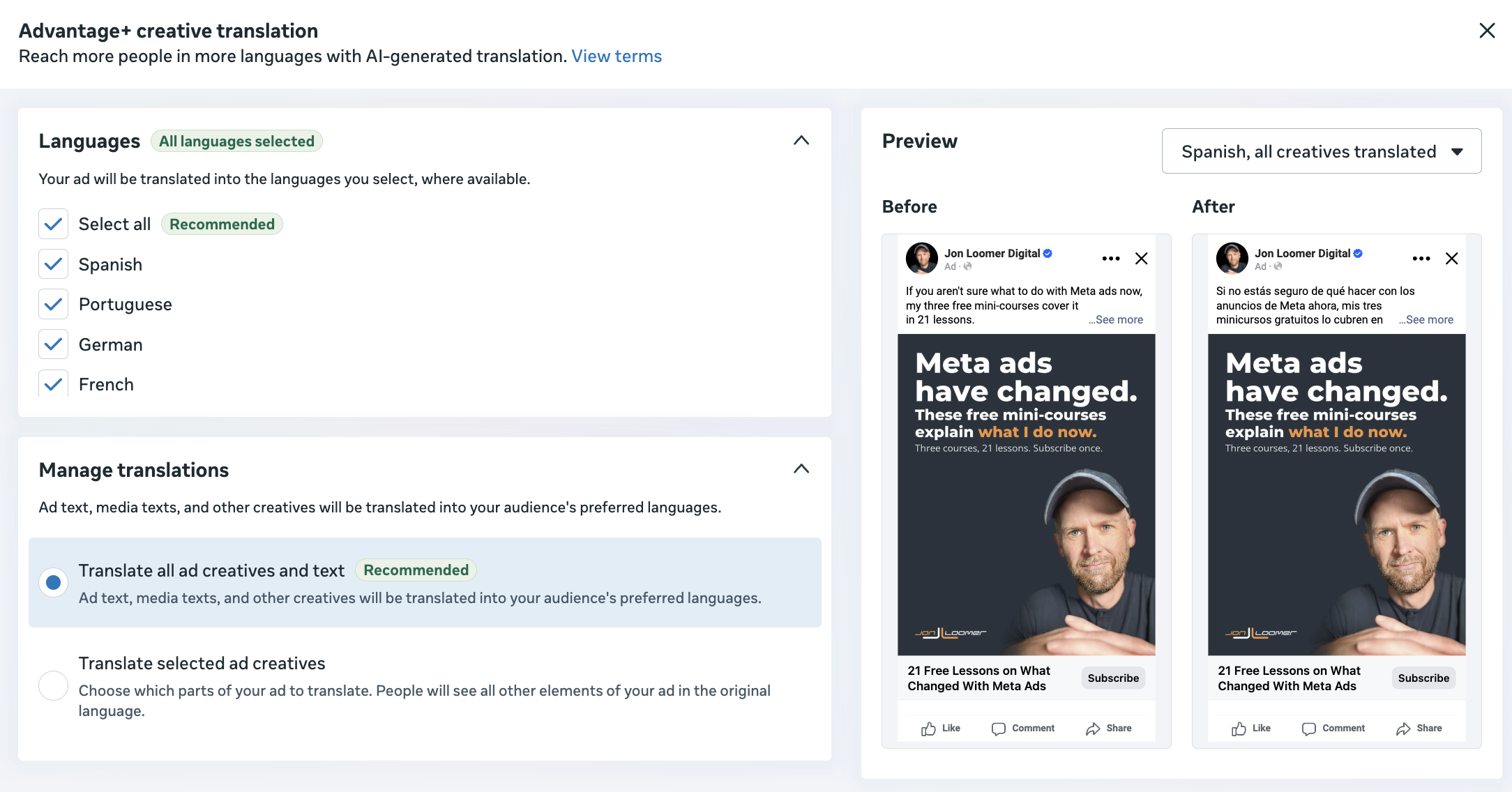
12. Translation: Meta uses AI to regenerate your text in multiple languages, including the text on your image when possible.
On/Off: I tend to leave this on, but that does require some trust that the translation is applied correctly.
Advantage+ Creative Enhancements
And now we get to all of the enhancements that you’ll see when going through the initial creative flow. Note that I’m only listing what appeared for me in a single experience, so there are bound to be others that pop up depending on the format and situation.
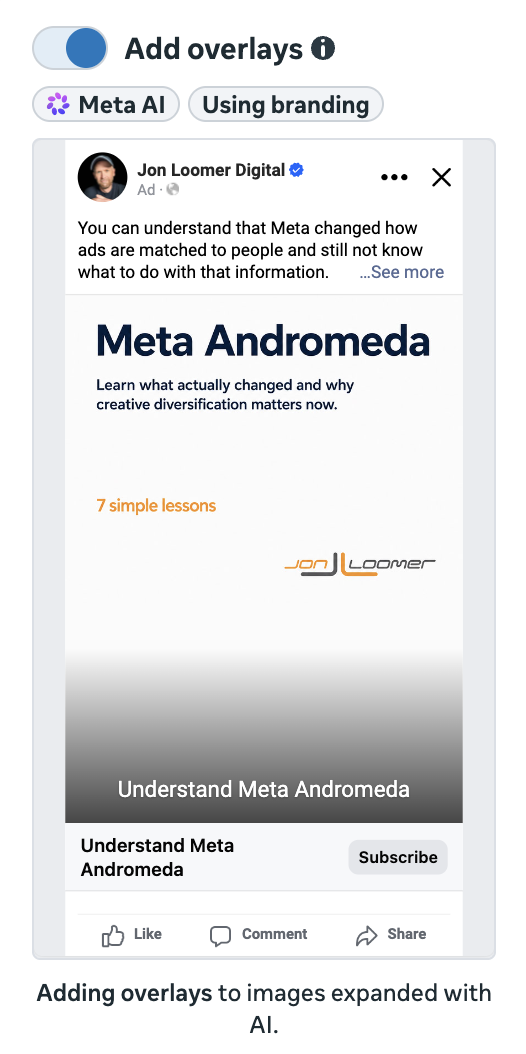
13. Add Overlays: Meta will add overlays that show text you have provided along with your selected ad creative when it is likely to improve performance. Font and colors are applied from Branding by default.
On/Off: I go back and forth on this one. It’s an option I’ve historically turned off, but it also depends on the preview I’m given.
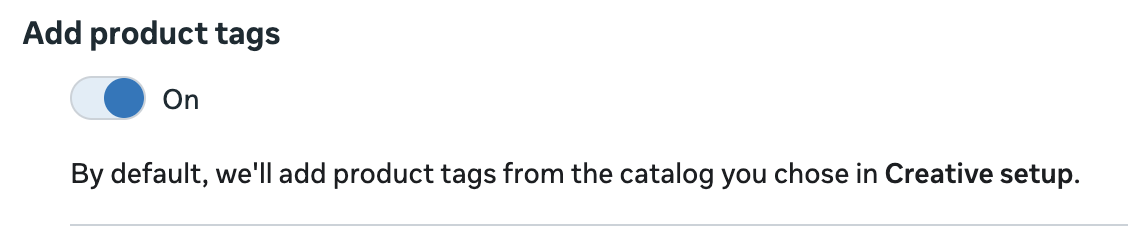
14. Add Product Tags: You can dd product tags to highlight products in your uploaded media. The ability to show products from your catalog as image tiles along with your uploaded media can now be found in Format Display Options.
On/Off: If I have a product catalog that I want to highlight, I may keep this on. Otherwise, it’s off. You can customize the products used.
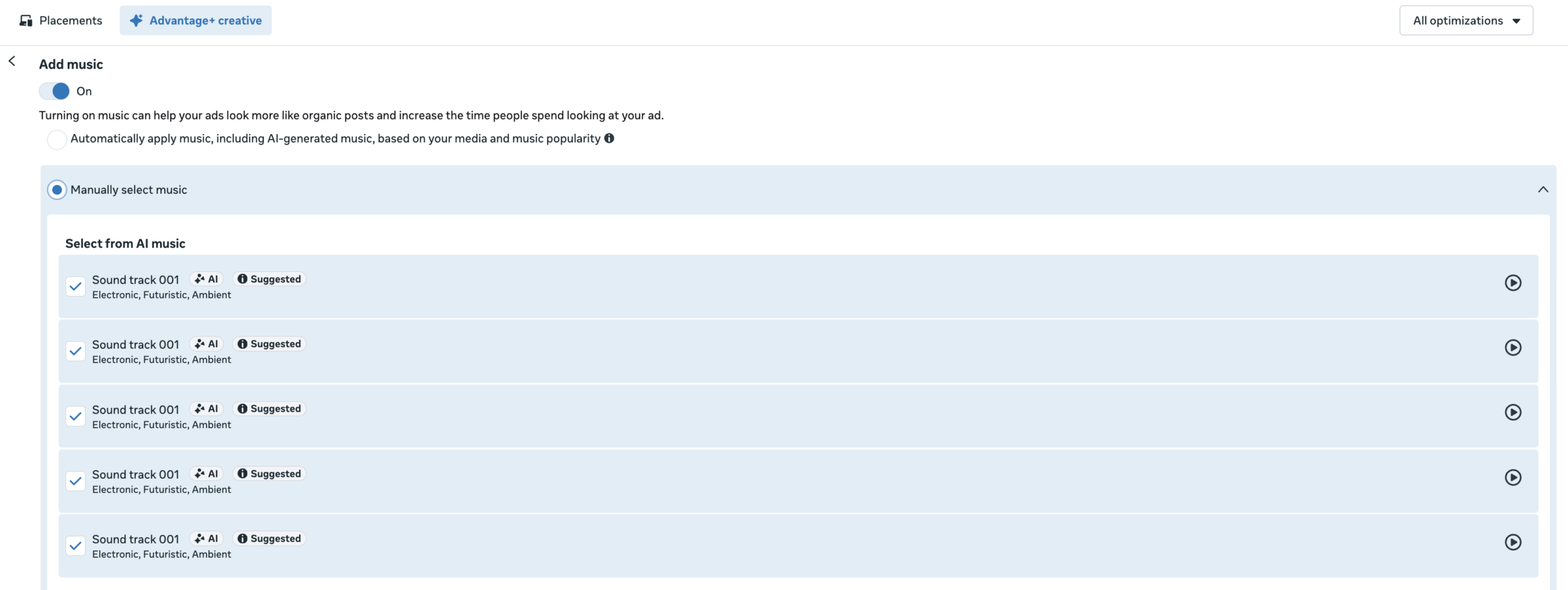
15. Add Music: Add music to your ad so it matches the look and feel of platforms that use sound. You can let Meta choose music for your ad or select music yourself.
On/Off: One of the most controversial enhancements. Most advertisers turn this off, but I tend to leave it on. The key is that you can customize the music to better fit your brand.
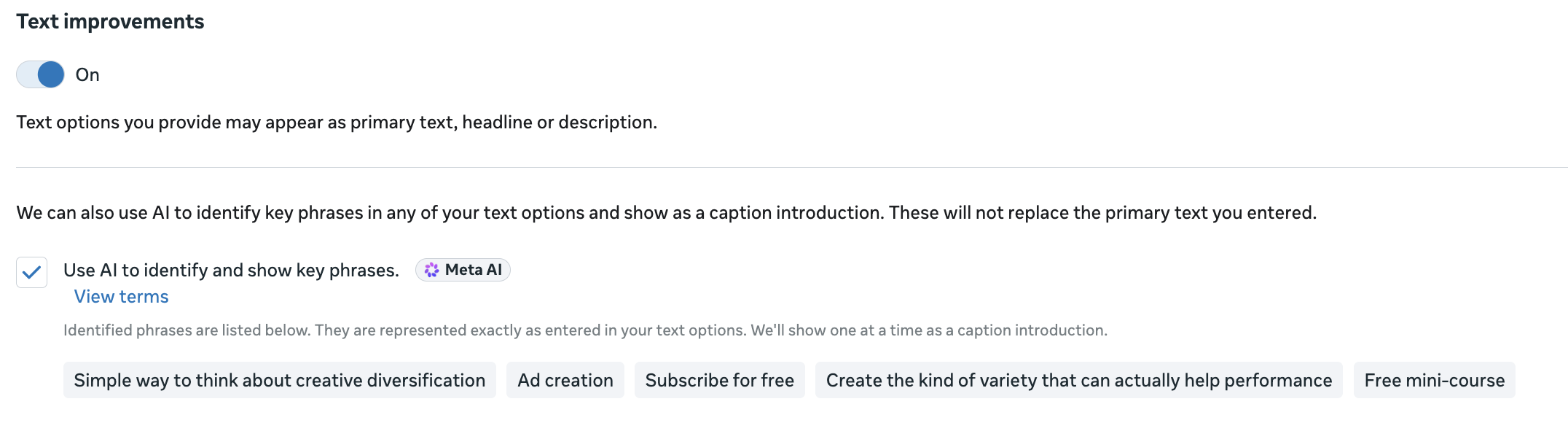
16. Text Improvements: Text options you provide may appear as primary text, headline, or description. Meta may add a caption introduction from your headline options and highlight key sentences when it’s likely to improve performance. Meta can also use AI to identify potential high-performing phrases in your text to focus on in your ad.
On/Off: You can view all AI-identified phrases before running your ad. I don’t love the idea of swapping primary text, headline, and description, but I often leave this on.
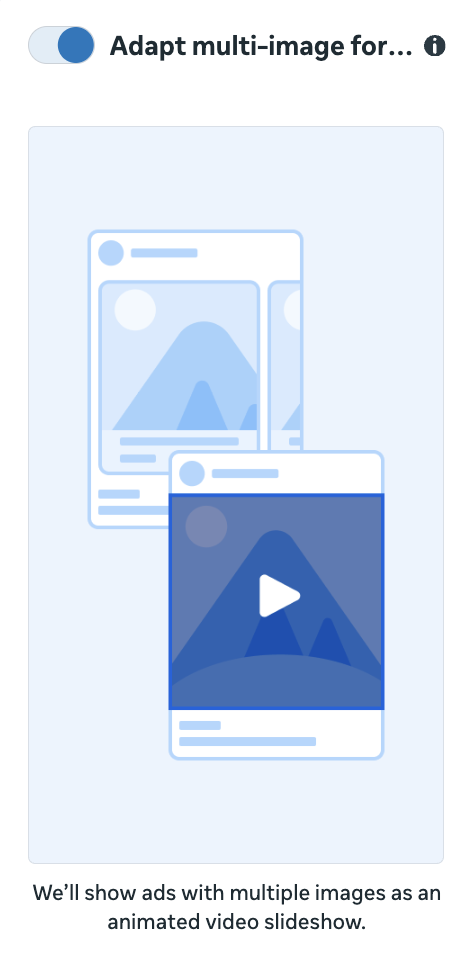
17. Adapt Multi-Image Format: Meta will show ads with multiple images as a video slideshow or a video with a collection.
On/Off: Whether I keep this on depends on if I’m providing multiple images that would work as a slideshow.
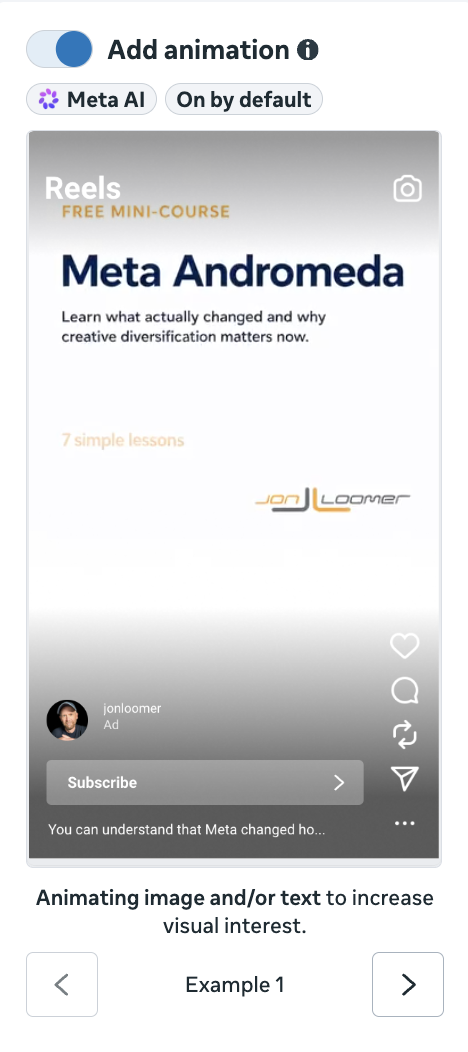
18. Add Animation: Automatically add common movements like panning, zooming, rotating and more to your eligible images and transform them into short, engaging videos. Text in your images may also be animated.
On/Off: I almost always leave this on because it’s a great opportunity to diversify creative with a video option, especially if I hadn’t otherwise provided one. You can see examples of it before turning this enhancement on.
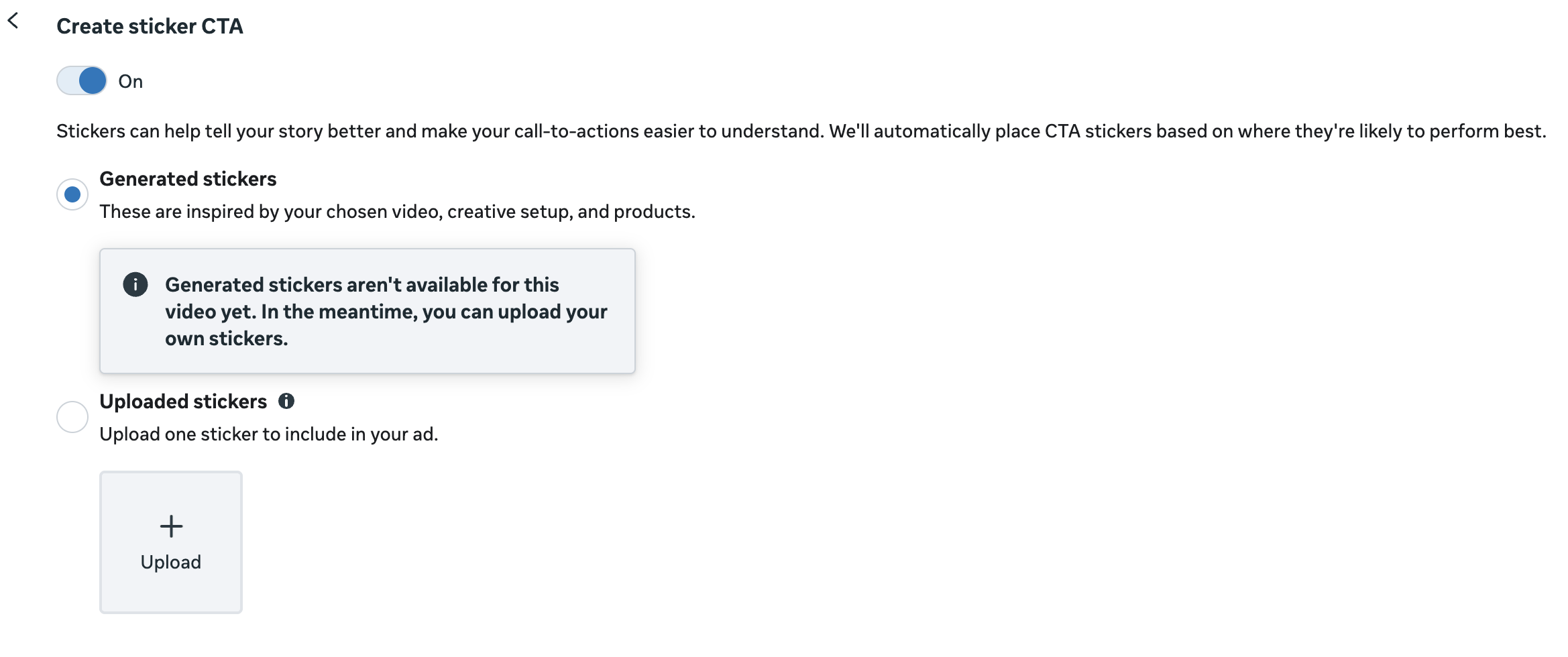
19. Create Sticker CTA: Stickers can help tell your story better and make your calls to action easier to understand. Meta will automatically place CTA stickers based on where they’re likely to perform best. This enhancement currently applies to videos in the Facebook Stories placement.
On/Off: You can preview this before accepting it. Meta may generate stickers inspired by your chosen video, creative setup, and products. You can also upload your own custom stickers.
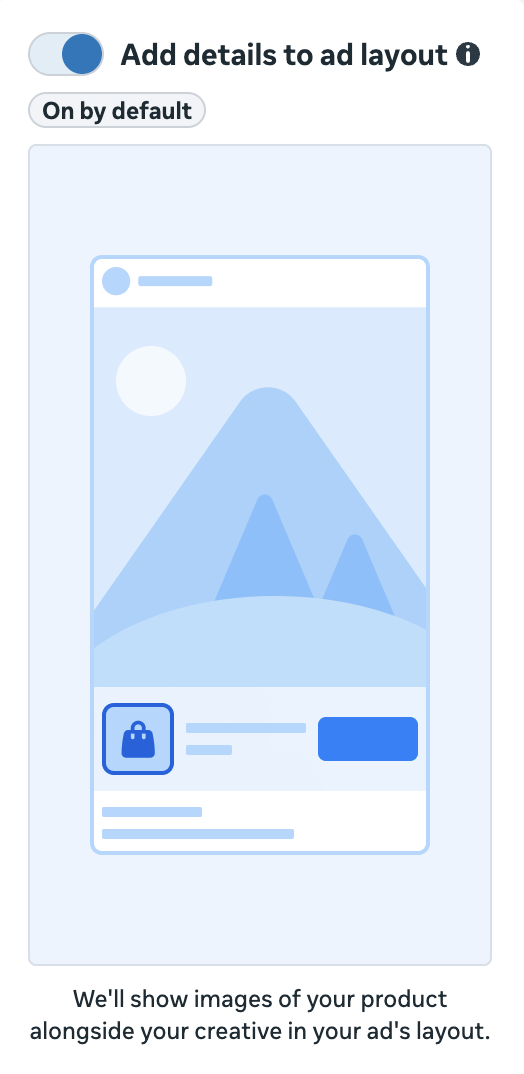
20. Add Details to Ad Layout: Meta shows images of your product alongside your creative in your ad’s layout. The generic example Meta provides appears to be in the Ads on Facebook Reels placement.
On/Off: This enhancement is turned on by default for eligible ads. The one problem is there isn’t a good way to see exactly how it is applied to your ads. I tend to leave this on, but I’d understand turning it off out of caution.
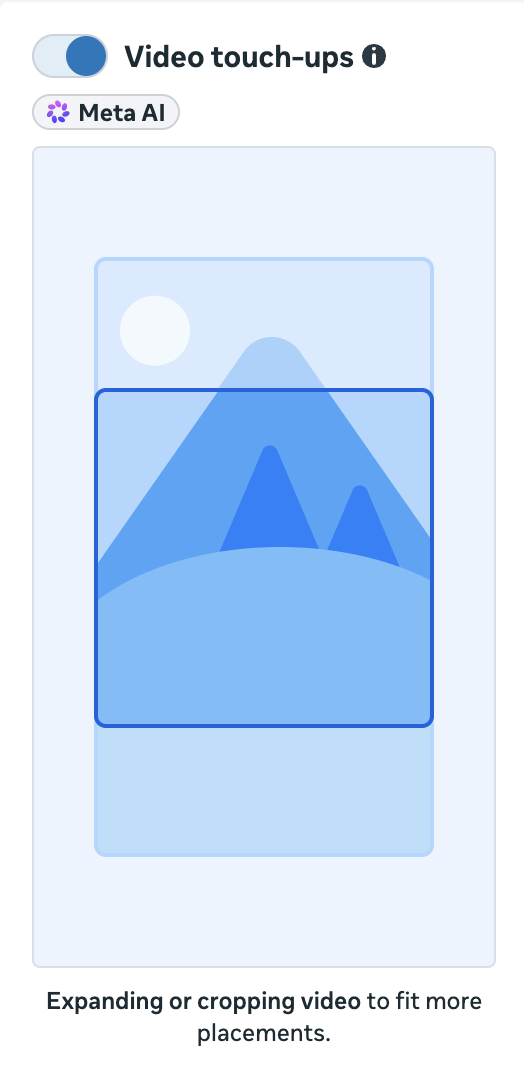
21. Video Touch-Ups: Meta uses AI to automatically adjust crop or expand your video to look natural in all placements.
On/Off: Meta only provides a generic example of how this is executed, so I understand using caution and turning this off. I tend to leave it on for my own ads.
Essential Enhancements
There are other enhancements you’ll see during the initial ad setup that Meta separates and turns on as “Essential Enhancements.”
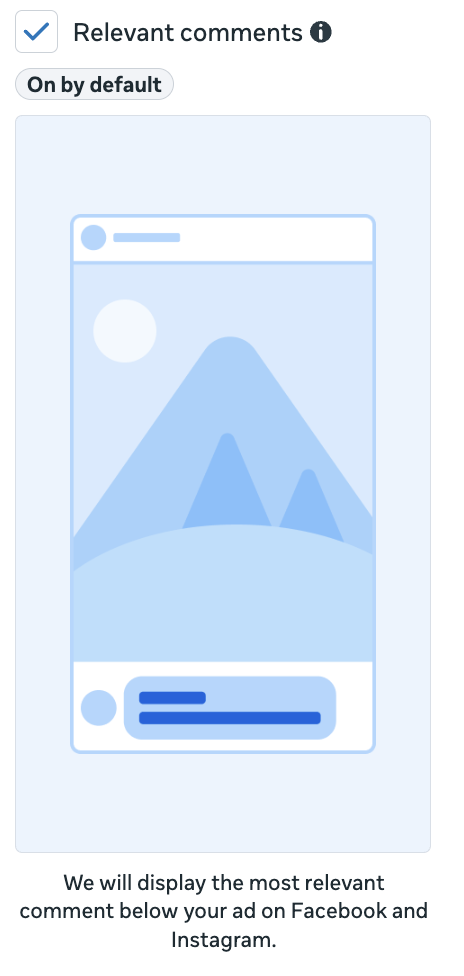
22. Relevant Comments: Meta will display the most relevant comment below your ad on Facebook and Instagram.
On/Off: This can be turned off, but I tend to leave it on. Unless you ever see an example of this where a negative comment is highlighted, it feels low-risk.
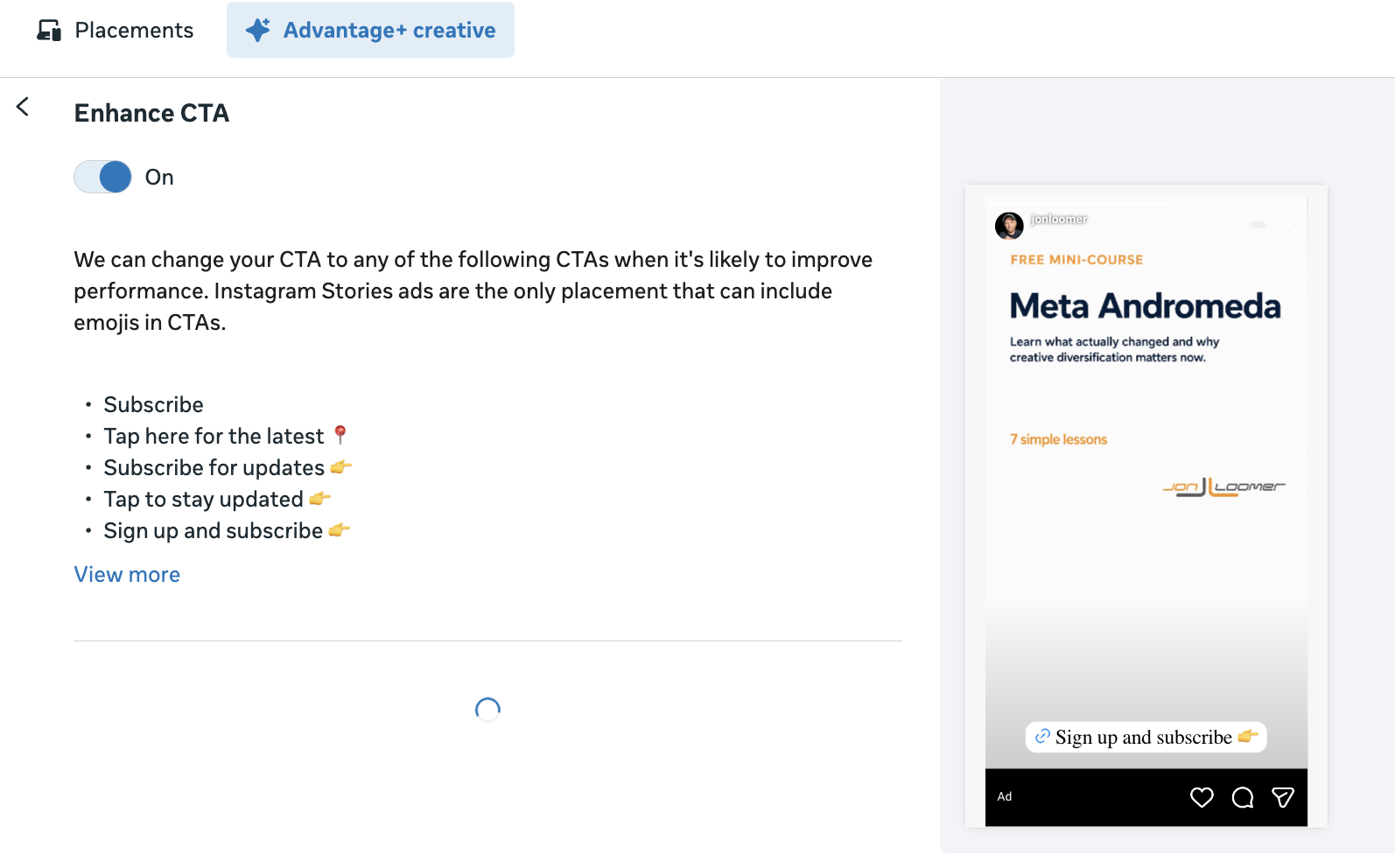
23. Enhance CTA: Meta will pair key phrases from your ad sources with your CTA.
On/Off: This is customizable, and you can view all the phrases Meta collected before running your ad. I tend to leave this on.
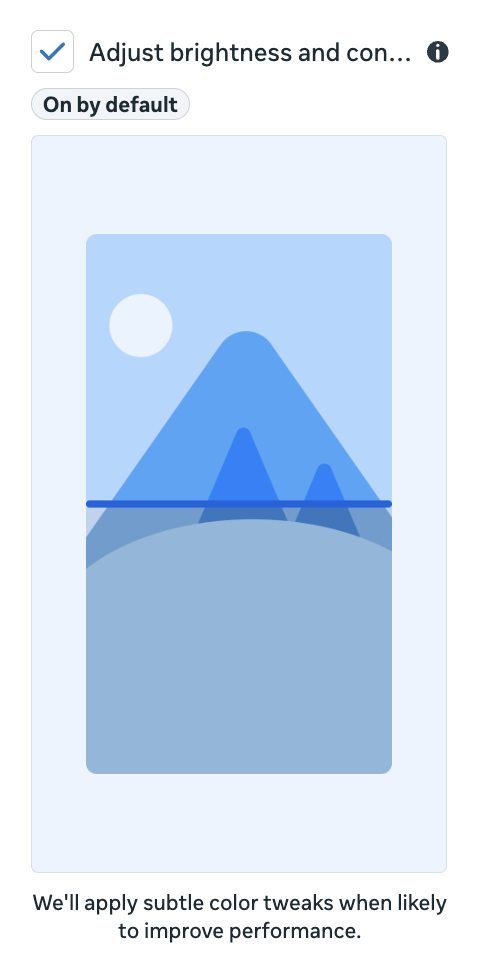
24. Adjust Brightness and Contrast: Meta will apply subtle color tweaks in your image when likely to improve performance.
On/Off: This feels low-risk, and I keep it on.
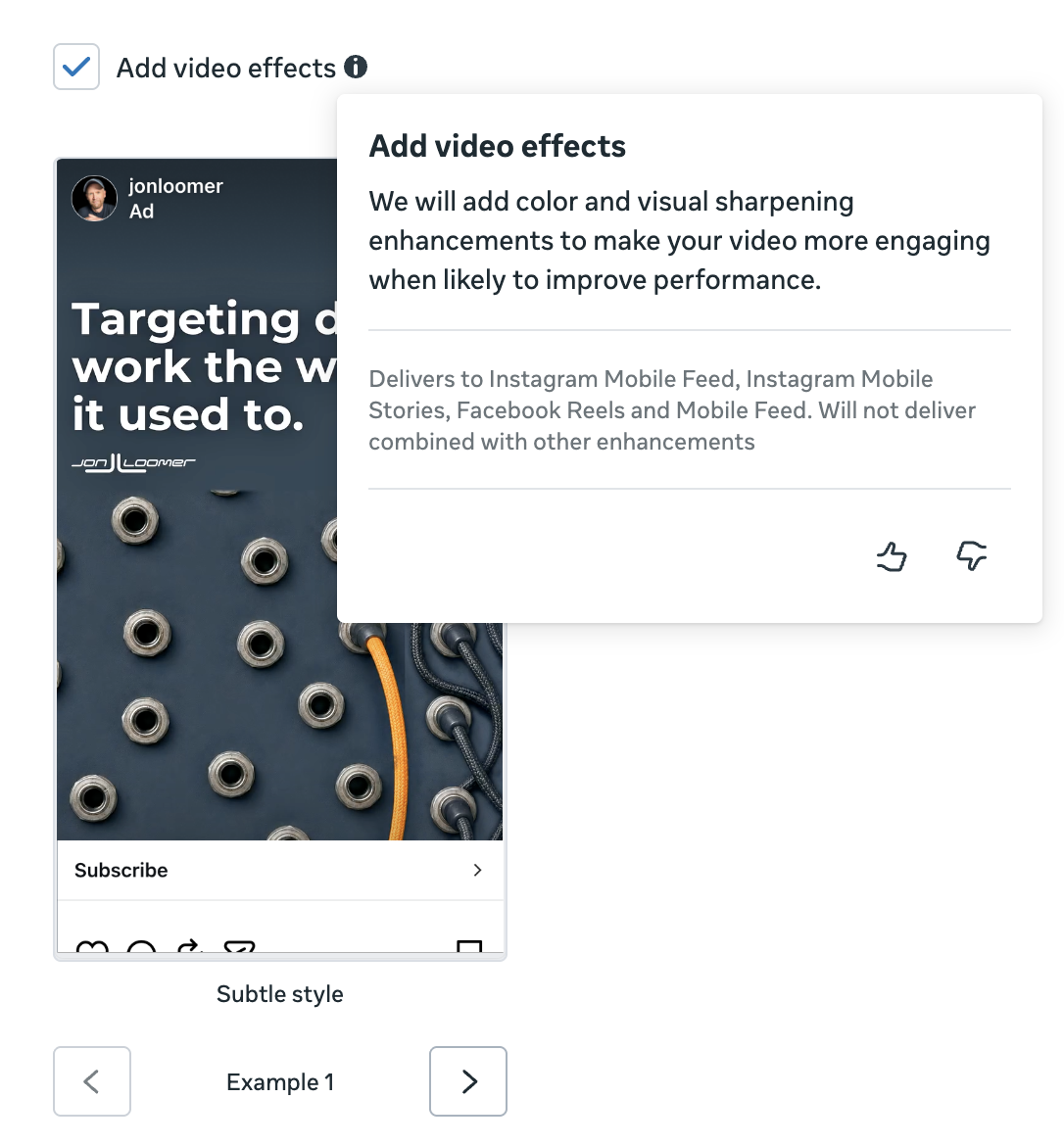
25. Add Video Effects: Meta will add color and visual sharpening enhancements to make your video more engaging when likely to improve performance.
On/Off: Meta does provide examples of how this enhancement is applied to your ad. If you’re okay with how it looks, I see no reason to turn it off.
Format Display Options
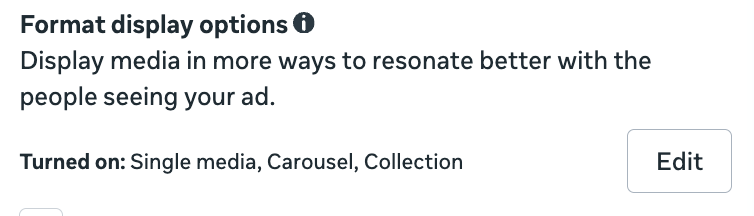
Format Display Options is the new way of providing carousel and collection options for a single image or video ad. It will also turn an existing carousel or collection into single image or video options. If you’re not careful, this is very easy to miss.
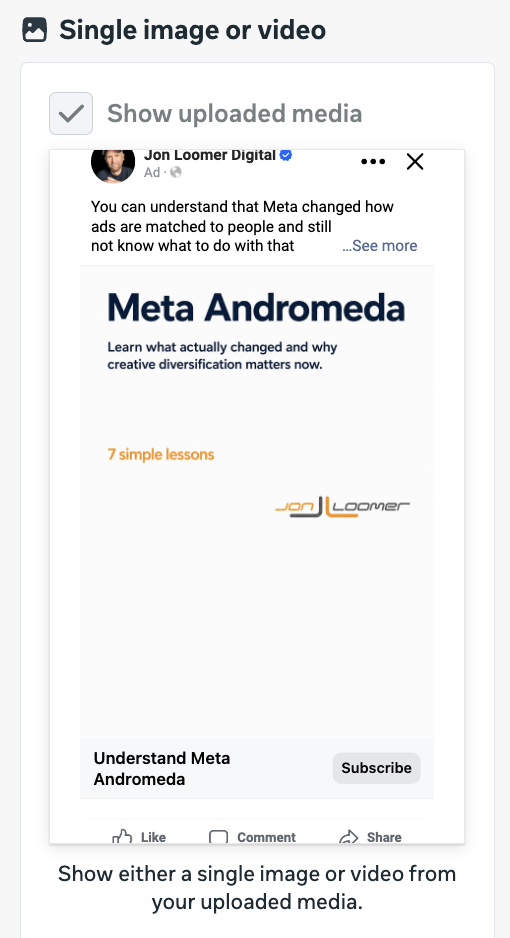
26. Single Media (Show uploaded media as single image or video): There are two options under Single Media. Show either a single image or video from your uploaded media.
On/Off: If you’re using uploaded, related, or generated media, this option must be turned on.
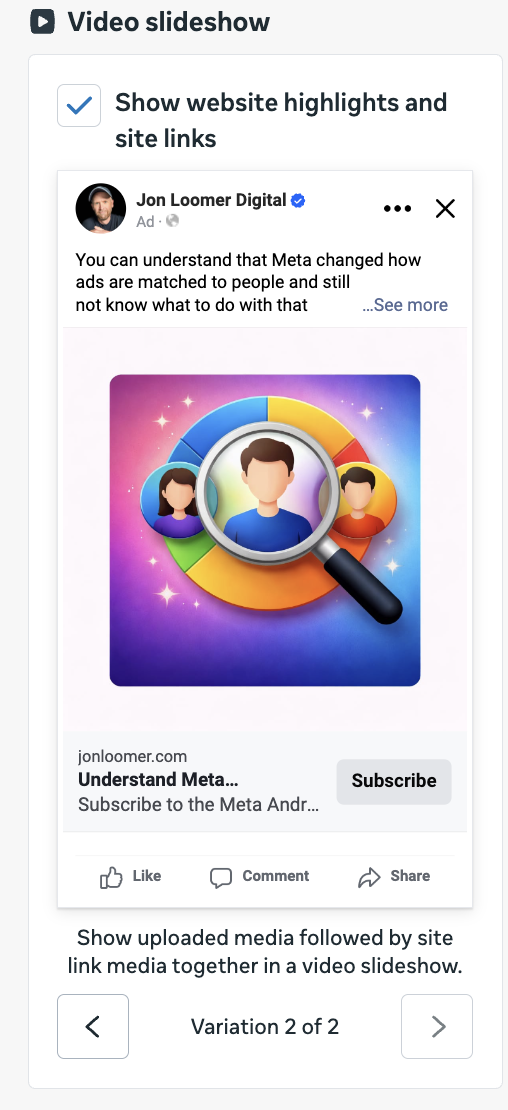
27. Single Media (Show Sebsite Highlights and Site Links as a video slideshow): Show uploaded media followed by website highlights together in a video slideshow.
On/Off: This is where your Site Links and Website Highlights come into play. I leave it on if I’m okay with how those appear here.
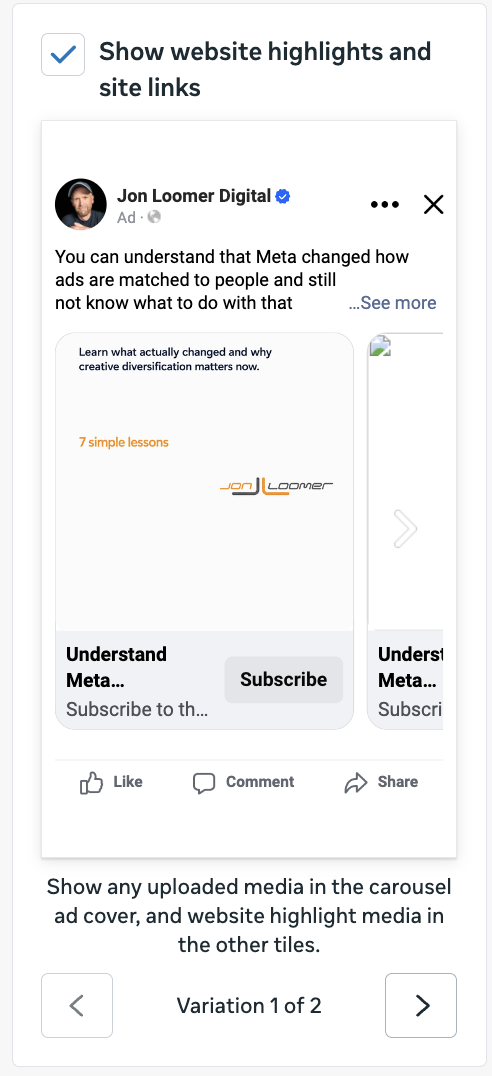
28. Carousel (Show Website Highlights and Site Links): Show any uploaded media in the carousel ad cover, and website highlight media in the other tiles.
On/Off: You can customize how this looks using Site Links and Website Highlights. I tend to leave this on.
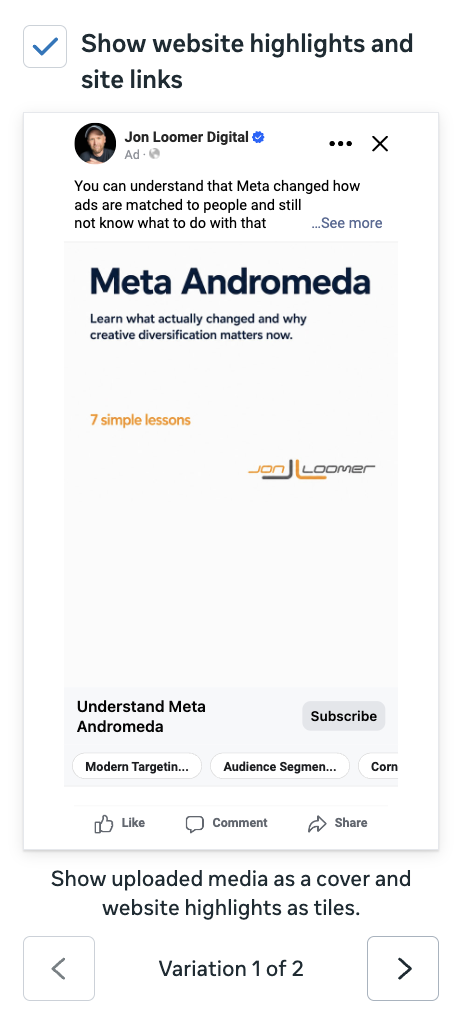
29. Collection (Show Website Highlights and Site Links): Show uploaded media as a cover and website highlights as tiles.
On/Off: You can customize how this looks using Site Links and Website Highlights. I tend to leave this on.
Interactive Experiences
This is another setting that’s easily missed because it doesn’t appear until after you’ve uploaded your ad creative (you’ll find it above Creative Testing). If you click to edit, you can determine whether or not to leave these on.
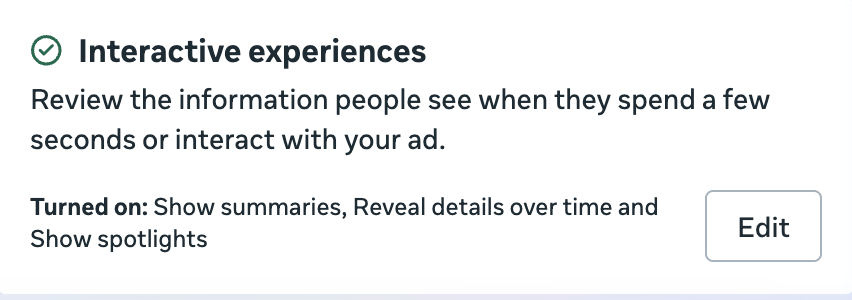
Interactive Experiences use sources like Website Summaries, Website Highlights, Website Screenshot, and Website Form to enhance your ad in the following ways…
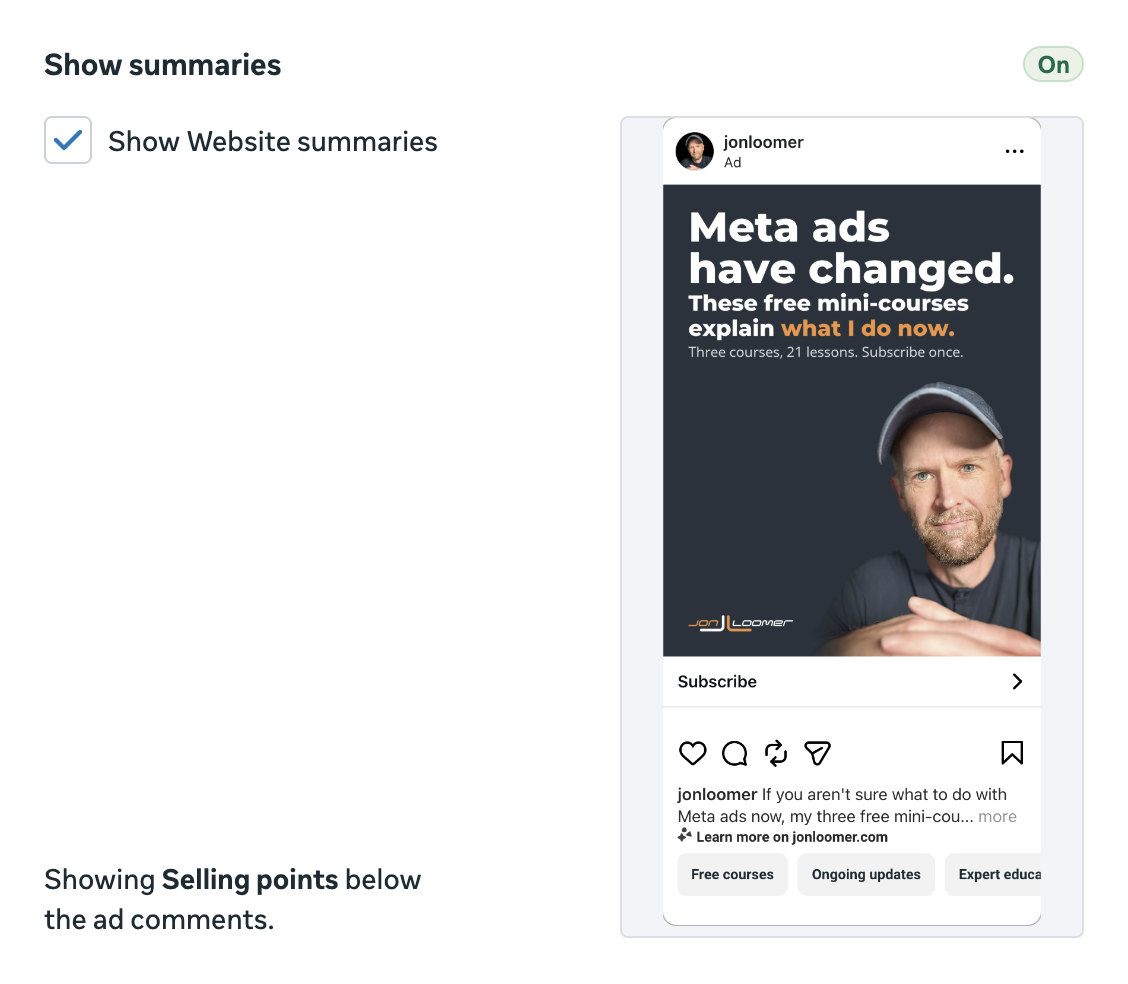
30. Show Summaries: This will show selling points below the ad comments.
On/Off: You can view a couple of examples before turning this on. I tend to leave it on.
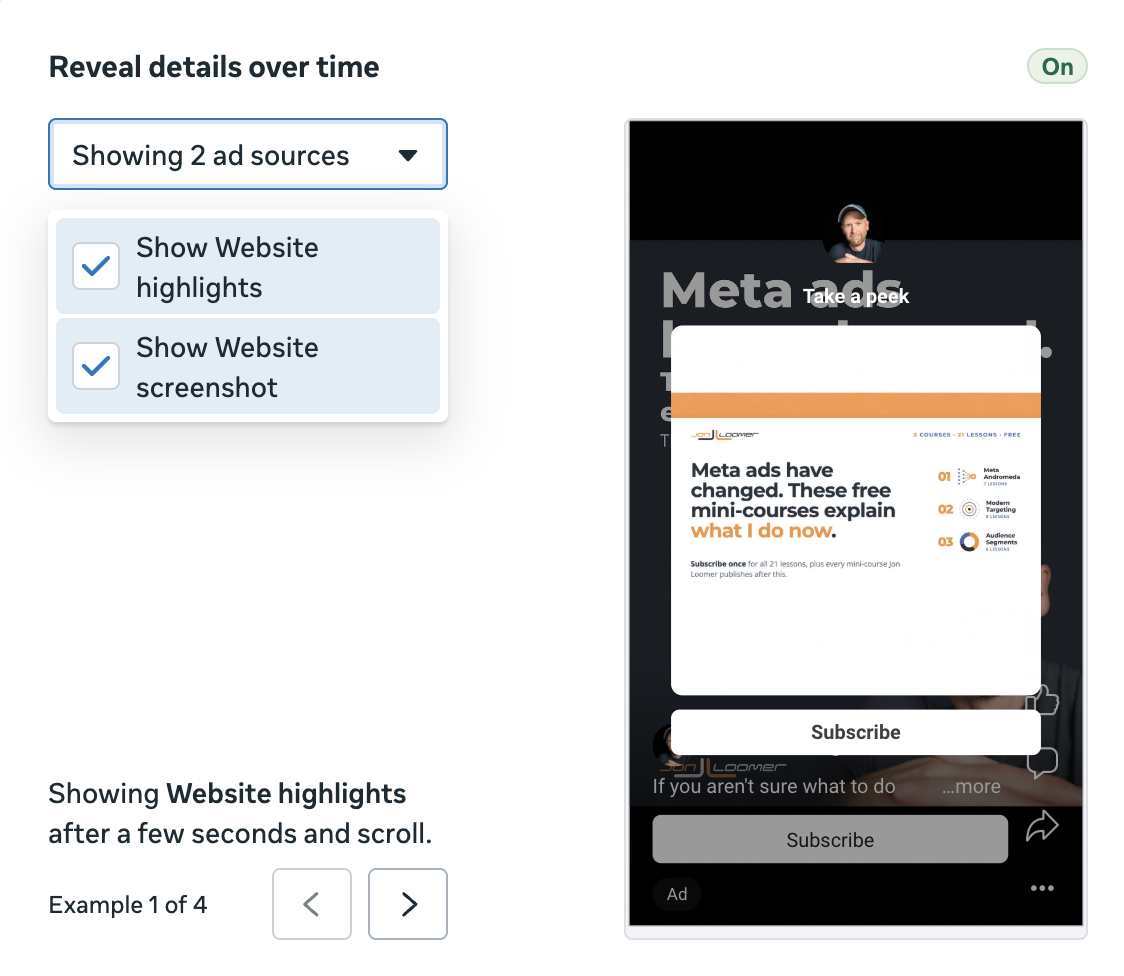
31. Reveal Details Over Time: Show Website Highlights after a few seconds and scroll.
On/Off: This pulls from the Website Highlights covered earlier, as well as a website screenshot. I tend to leave these on.
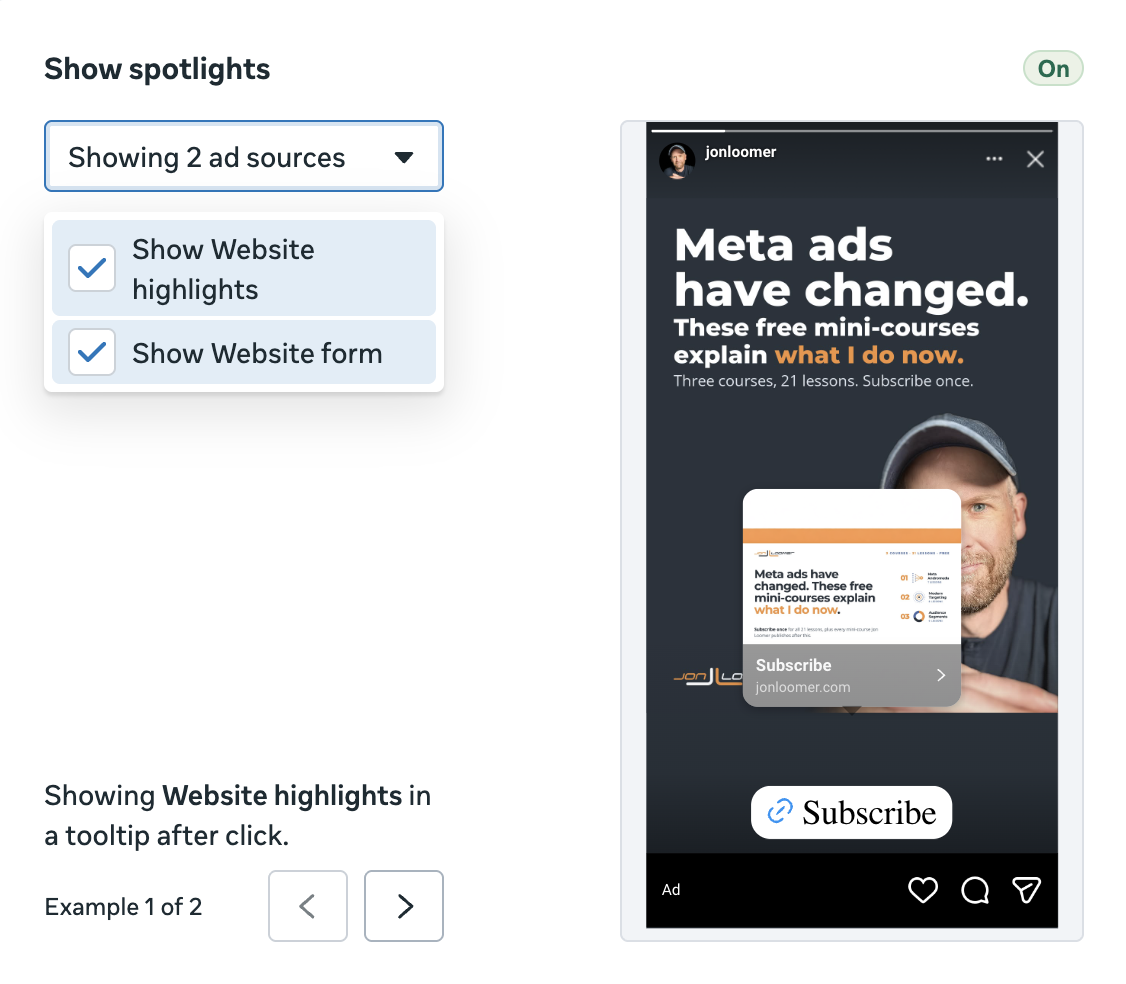
32. Show Spotlights: Shows Website Highlights in a tooltip after a click.
On/Off: You can turn it off, but I tend to leave this on.
Other Settings
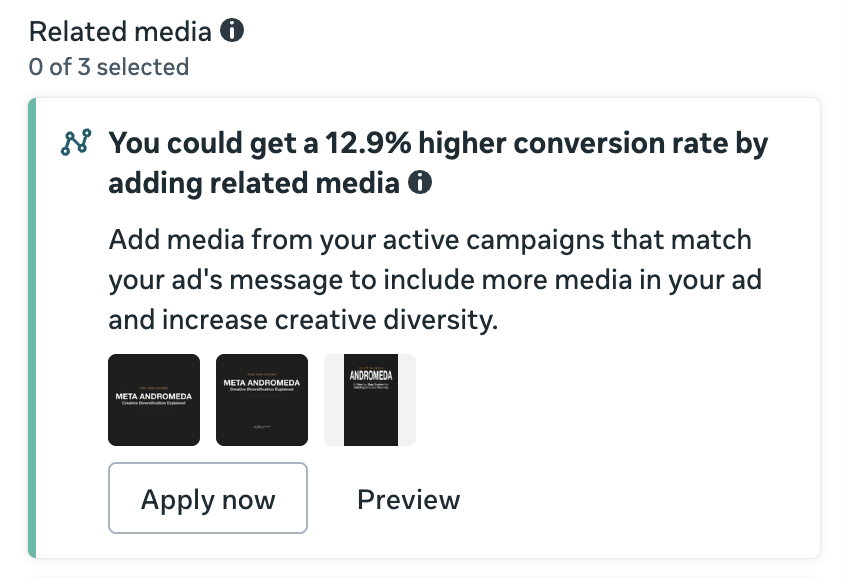
33. Related Media: Add media from your active campaigns that match your ad’s message to include more media in your ad and increase creative diversity.
On/Off: If you’re not careful, Meta will add Related Media without you noticing. That’s not necessarily a bad thing, especially if the images or videos work with your current ad. But if they don’t, it can create a mismatch of creative and messaging. I do accept Related Media sometimes, but you need to be careful about which you accept.
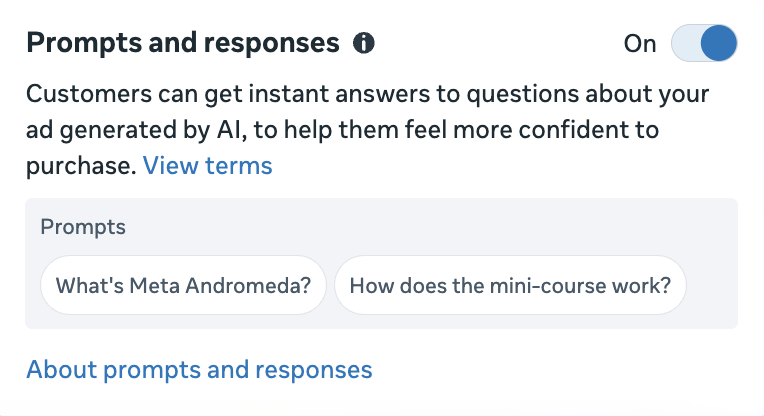
34. Prompts and Responses: Customers can get instant answers to questions about your ad generated by AI, to help them feel more confident to purchase.
On/Off: While you can see the prompts that may appear below your ad, there is mystery behind the types of responses Meta will provide. Meta uses information from your website to answer potential customer questions. I understand turning this off without having an interactive example of how Meta answers questions. I leave it on for now.
35. Multi-Advertiser Ads: Multi-advertiser ads have been around for a few years now, and they’re a source of confusion and controversy.
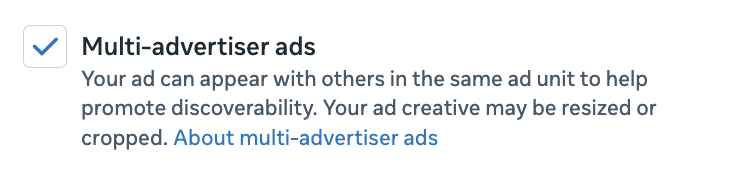
This is on by default. When on, a carousel of similar products can appear under an ad. In theory, this could be bad if that carousel appears below your ad. But your product could also be featured in that carousel under a competing product.
Meta has done a really bad job of selling the value of this feature. There is no way to know how often it’s used or what impact it has on performance.
On/Off: It’s on by default and it can be turned off. I’ve just never seen any good reason to uncheck it. The impact of multi-advertiser ads has long been a mystery.
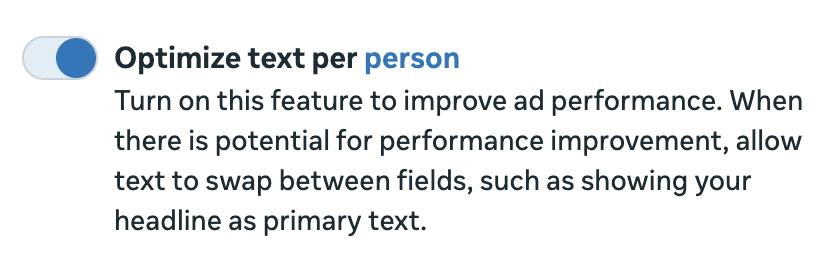
36. Optimize Text Per Person: This is one of the oldest enhancements, but most advertisers miss it. When there is potential for performance improvement, allow text to swap between fields, such as showing your headline as primary text.
On/Off: In theory, I’m not a fan of the idea of swapping my text between fields. But in the spirit of optimization of results, I tend to leave it on. I can see it making sense to swap out long primary text for a headline or description, for example, in certain placements where less text is visible.
Test New Creative Features
Even if you flip every checkbox and toggle when creating an ad, you may see changes made to your creative. This is because of something buried within your Advertising Settings.
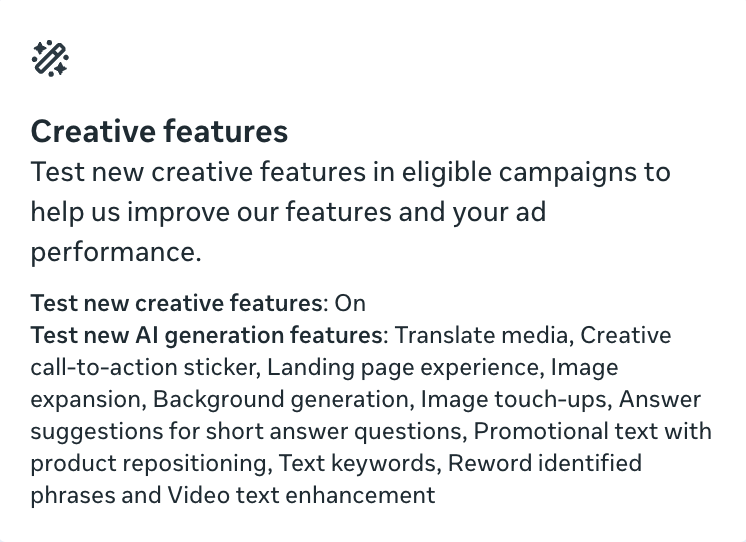
If you have this box checked, Meta can show fewer than 5% of your ad impressions with new enhancements that are currently in testing.
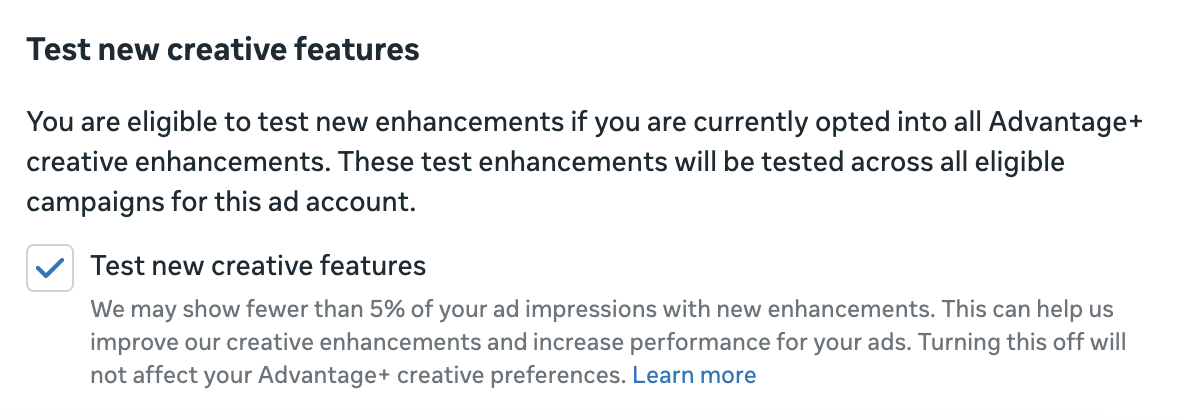
At this moment, there are 11 creative features that are currently in testing for my account. You guessed it, we’re going to go through each one.
Note that you can uncheck the box to test new creative features, and you can also turn off individual enhancements. I keep all of these on.
37. Translate Media: Meta will translate the voiceover of your video, add captions, and create text overlays to help people understand your ad better.
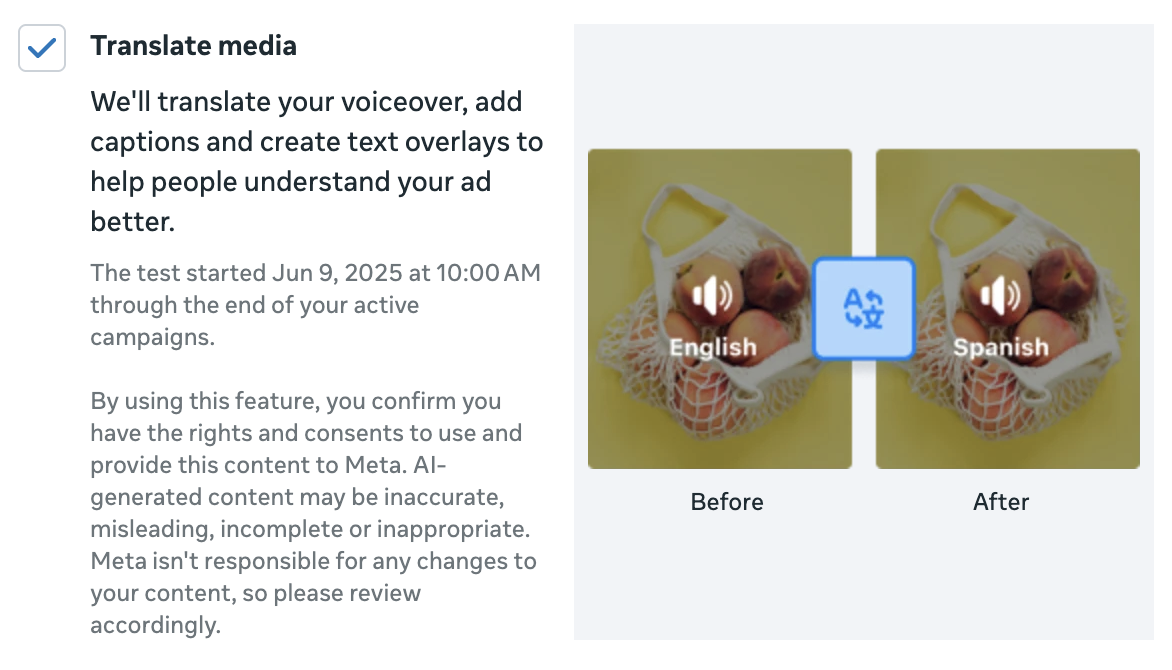
38. Creative Call-to-Action Sticker: Meta will add a creative sticker on your call-to-action to help promote your product or message on Instagram and Facebook Stories ads.
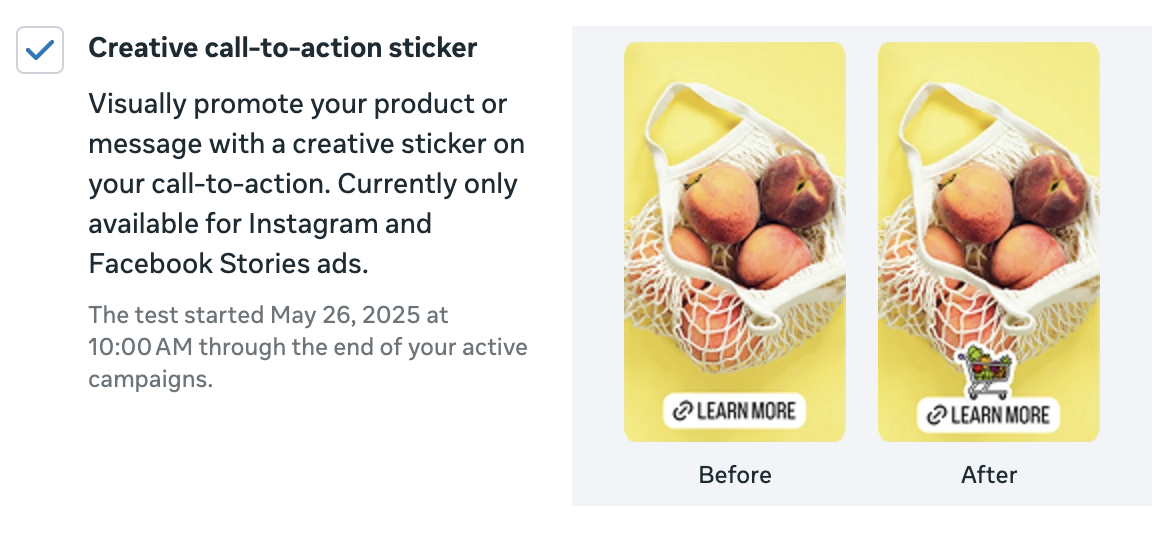
39. Landing Page Experience: Meta will use AI to generate a visual landing page from your website, highlighting your key services and calls to action. When enabled, people who tap your ad may see this instead of your website.
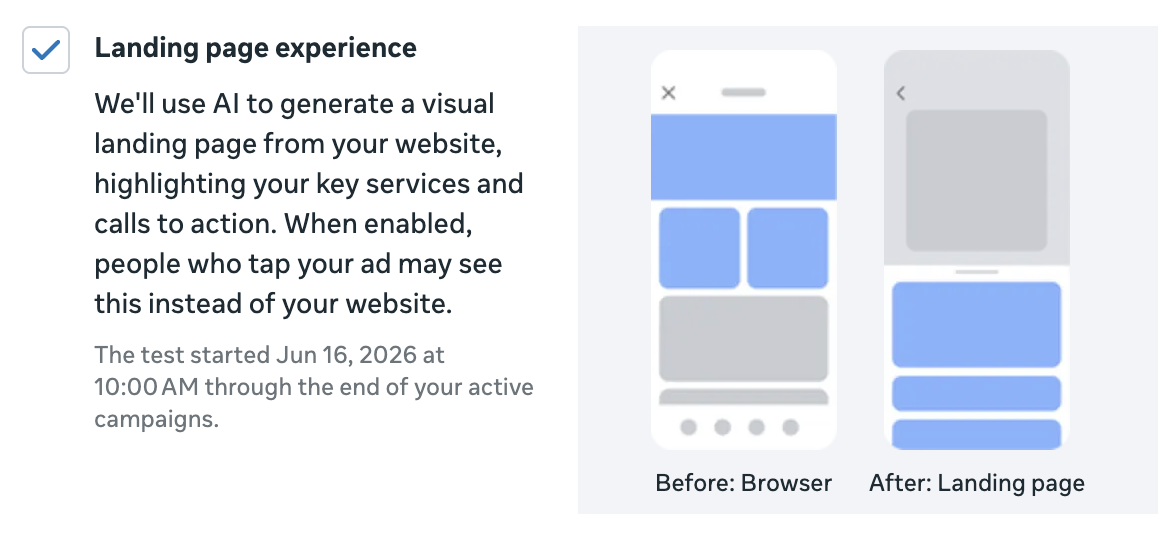
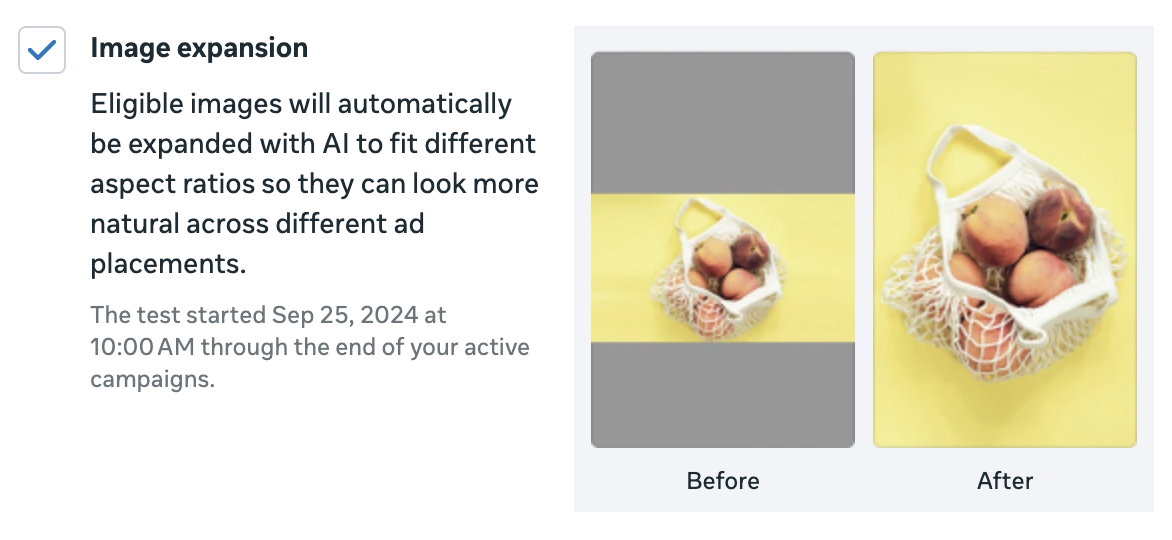
40. Image Expansion: Eligible images will automatically be expanded with AI to fit different aspect ratios so they can look more natural across different ad placements.
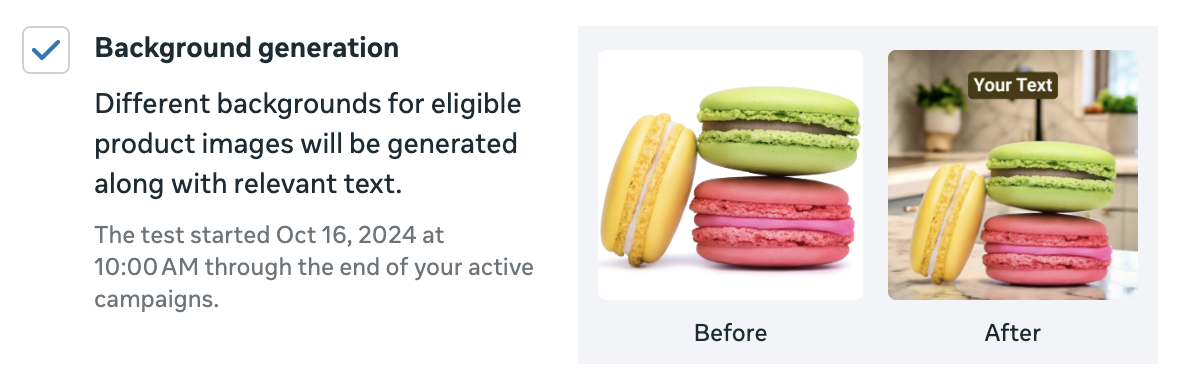
41. Background Generation: Different backgrounds for eligible product images will be generated along with relevant text.
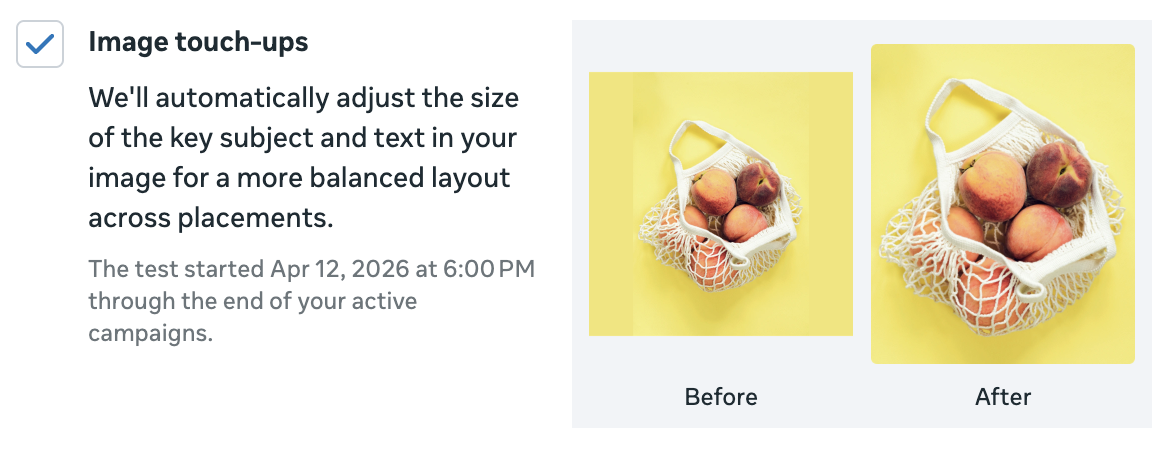
42. Image Touch-Ups: Meta will automatically adjust the size of the key subject and text in your image for a more balanced layout across placements.
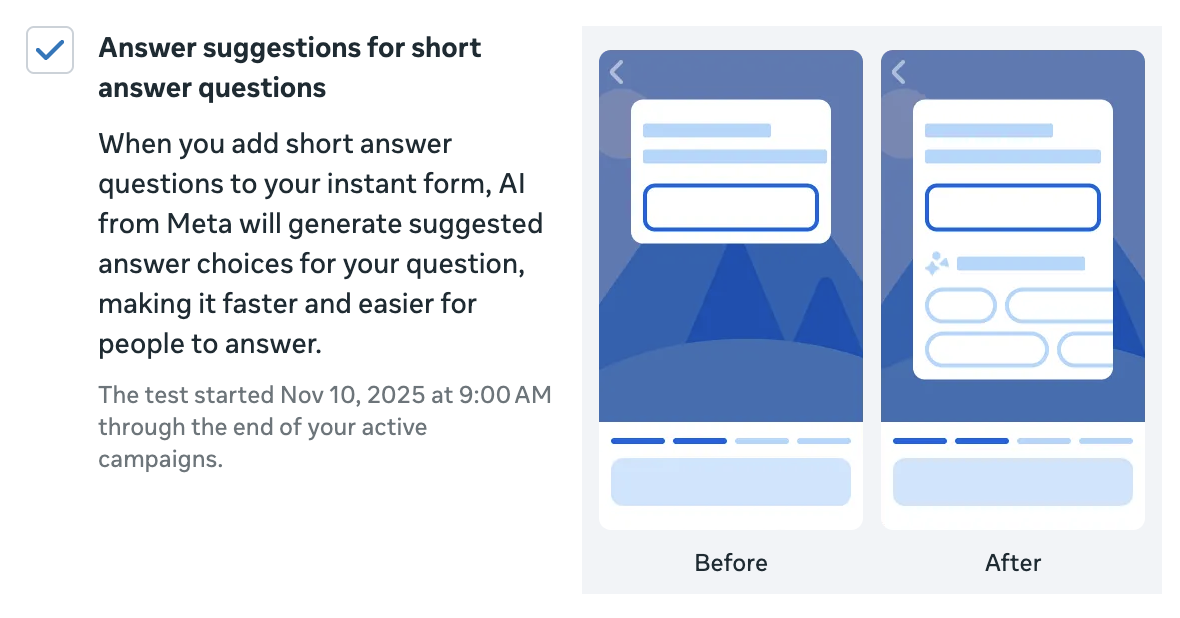
43. Answer Suggestions for Short Answer Questions: When you add short answer questions to your instant form, AI from Meta will generate suggested answer choices for your question, making it faster and easier for people to answer.
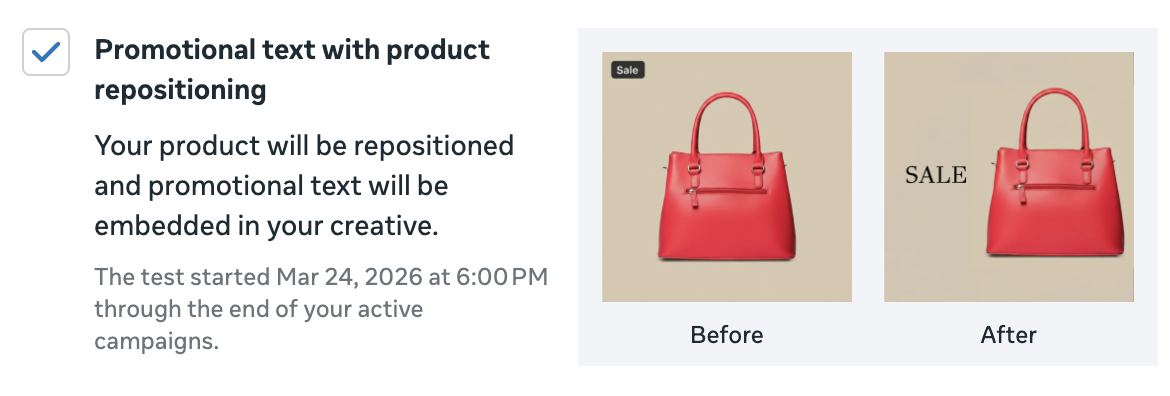
44. Promotional Text with Product Repositioning: Your product will be repositioned and promotional text will be embedded in your creative.
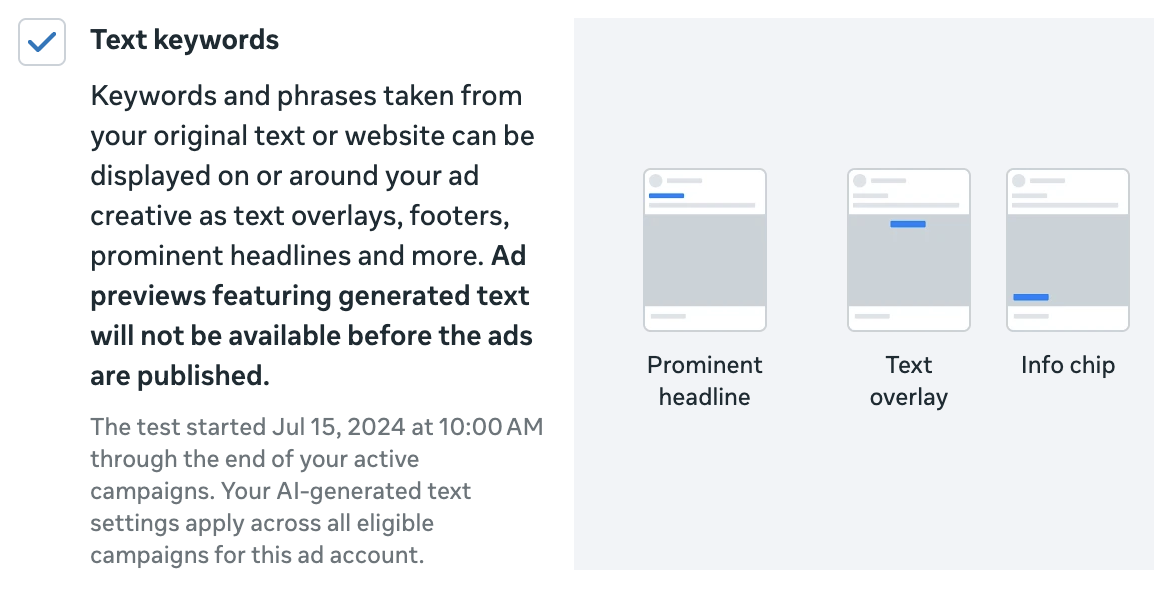
45. Text Keywords: Keywords and phrases taken from your original text or website can be displayed on or around your ad creative as text overlays, footers, prominent headlines and more.
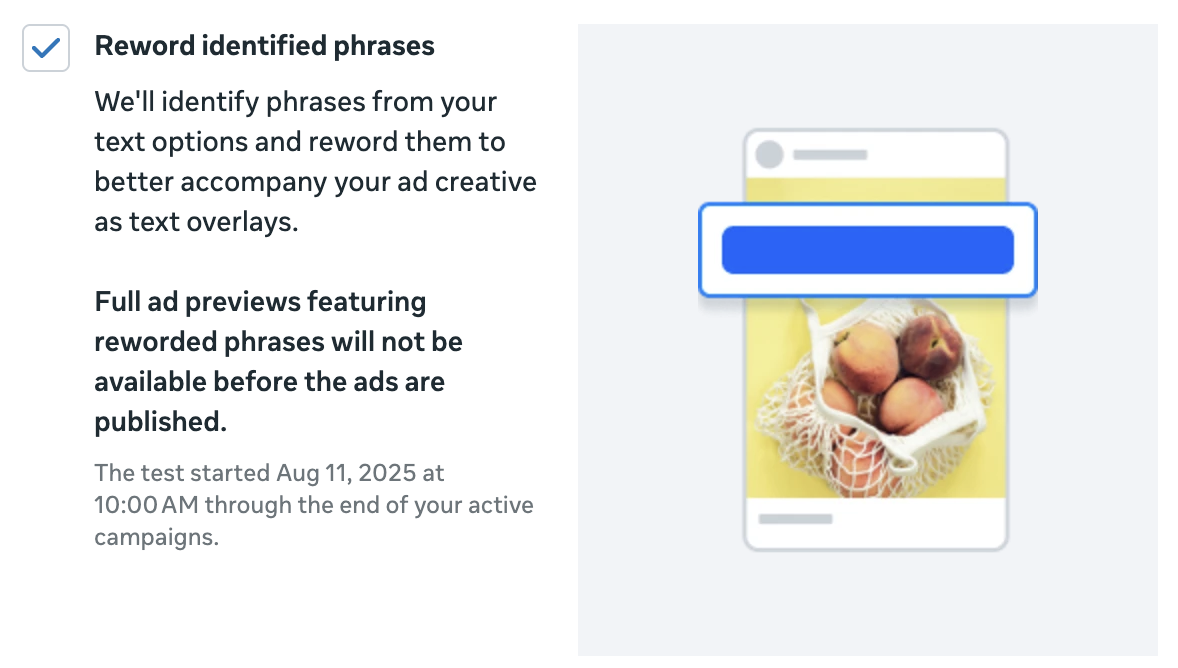
46. Reword Identified Phrases: Meta will identify phrases from your text options and reword them to better accompany your ad creative as text overlays.
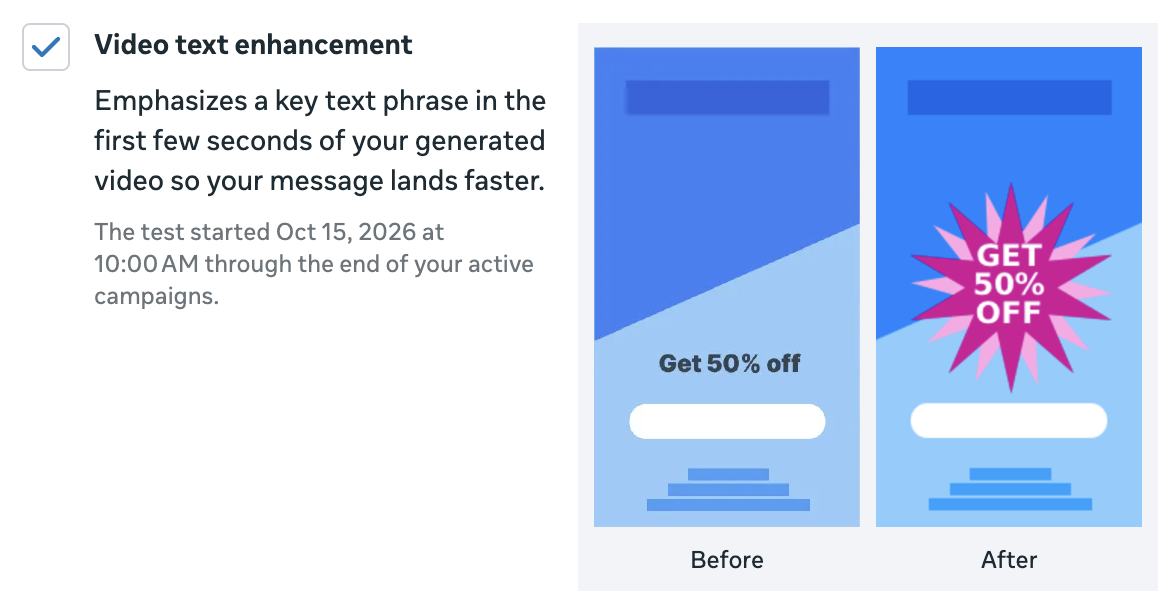
47. Video Text Enhancement: Emphasizes a key text phrase in the first few seconds of your generated video so your message lands faster.
General Recommended Approach to Enhancements
There is not a one-size-fits-all approach to applying Meta’s enhancements. Every situation is different. But here are the factors I’d consider…
Set reasonable expectations with the client.
This is the most critical step of all. Ad creation is not like it was five or 10 years ago, when your client approved a single combination of ad copy and creative, and they could be confident that only that version would appear. Things work much, much differently now.
Part of it is educating clients to help them understand that ad creation is now a matter of providing diverse assets that Meta can combine to present the right combination of ad copy and creative to the right person in the right placement. Your “one ad” will include many variations when you consider up to five primary text options, five headlines, multiple images and videos, aspect ratios, and more. And that’s before even considering enhancements.
They also need to understand that the assumption that you should turn off every possible enhancement is an unreasonable expectation. Even if you tried, you’d fail. And you may never be able to find the cause.
Ultimately, you and the client need to embrace this fact because obsessing over what you perceive as a bad enhancement that slipped through may not be worth the time and energy dedicated to it.
Is it a sensitive client who micromanages?
I also completely understand that some clients are going to be more sensitive than others. And how you approach enhancements should tie closely to this understanding.
Regardless of the expectations you set, there are good reasons for some clients to be sensitive. A huge international brand has strict brand guidelines that need to be followed, and every ad goes through several levels of approval. You can’t have Meta messing with that.
There are also examples related to industry where a “small” enhancement for one company is a big deal for another. A musical artist won’t want someone else’s music played over their ad. A photographer won’t want AI-generated imagery replacing their photos.
Define your branding.
Some of the potential problems you might face with enhancements can be mitigated by taking the time to define your branding. Make sure that your logos, colors, fonts, text tone, visual style, and restricted words are all defined. This won’t prevent bad applications of enhancements entirely, but you’ll be in a much better situation.
Customize the enhancement to be acceptable when possible.
Many of the enhancements that advertisers reflexively turn off (or leave on without paying attention, for that matter) can be customized. Some of these tweaks can be beneficial, but they’ll be especially useful if you customize them to fit your needs. A prime example is the Add Music enhancement.
Evaluate the enhancement when given examples that apply to your ads.
Even if you can’t customize it, Meta often provides real-life examples of how an enhancement will be executed on your ad. In many cases, it’s barely noticeable. In others, it’s actually useful. Know what you’re turning off and why before you do it.
Be open to low-risk enhancements.
Some of these enhancements aren’t a big deal at all. They’re so small that the typical person will have no idea that an enhancement was applied. Be open to at least accepting these.
Balance the overall risk and reward.
Every client and situation is different. The risk associated with a badly applied enhancement is going to be different. But there’s also a reward in strategically using these enhancements to your advantage. They generate more variations that help with creative diversity and can improve performance.
But ultimately, there’s little risk in turning all enhancements off, too. It’s just a whole lot of work that may not be worthwhile, depending on the situation.
Know that you’ll never be able to isolate performance with and without enhancements.
I’ve highlighted 47 enhancements here. I don’t care what kind of split test you’re running, you will never know how enhancements impact performance.
Part of this is because we never know how often enhancements are applied, and this will change from ad to ad. But you can be assured that the volume of impressions for an individual enhancement is so small for your ad that it’s incredibly unlikely to be meaningful.
So if you’re wanting that evidence of performance differences related to applying or not applying enhancements, I can’t help you. Unfortunately, Meta is the only source that can help us there. They not only have the data, but they’ll have meaningful data from billions of ads.
Enhancements are meant to help you.
I know this is of no consolation to the advertisers who have been burned, but understand that there’s no benefit to Meta for you to hurt performance with badly executed enhancements. Their purpose is to help you.
And that’s the bottom line with almost any of Meta’s optimizations and enhancements that go beyond your defined settings. Meta will apply those adjustments if they are expected to help you.
Your Turn
How do you approach Meta’s creative enhancements? Do you always turn them off? Leave all on? Depends on the situation?
Let me know in the comments below!