


Meta Advertiser Field Notes
Weekly observations from inside Meta ads
This week’s updates cover Meta’s AI disclosure checkbox, a Creative Testing Tool limit that appears to be expanding, an Interactive Experiences example, Instant Form Lead Nurturing, and what may be a 30-day click and view attribution window for ChatGPT ads.
- AI disclosure checkbox in Meta Ads Manager
- Creative Testing Tool limit increased to seven ads
- Interactive Experiences example
- Instant forms lead nurturing
- 30-day click and view attribution for ChatGPT ads?
Let’s get to it…
1. AI Disclosure Checkbox in Meta Ads Manager
I recently spotted an interesting checkbox for AI disclosures, conspicuously hidden above primary text when creating an ad.
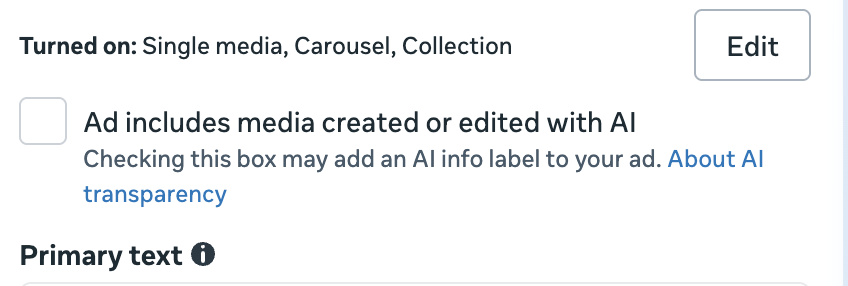
It’s not technically hidden, but it’s very easy to miss since it takes up so little real estate. It appears you should check this box if your ad includes media created or edited with AI. When you do, an AI Info label may be added to your ad.
Yes, “may.” This is where things get especially confusing. When you click the link to Meta’s documentation about AI transparency, it becomes less obvious when or why you might check that box.
Yes, AI transparency is necessary, especially now that legislation is starting to pop up that requires it. But according to Meta’s documentation, a label is likely to be added to your ad automatically, regardless of whether it was Meta’s AI or a third-party tool.
To increase transparency around AI-generated content, we will automatically label ad content that has been created or edited using some of Meta’s generative AI tools or with third-party generative AI tools offered by other products like Photoshop, Dall-E, or others.
Meta already knows when you use its AI tools to generate images and videos. And this is more than transparency related to fabricated humans. Meta says that an AI Info label will be automatically added when you use features like “Background Generation, Image Generation, or Add Animation to create or significantly edit an image or video.”
Meta also uses “industry-standard detection methods” to identify when you’ve used third-party tools to create or edit images and videos. Whether for using Meta’s features or third-party tools, though, the AI Info label will be virtually impossible to find. It won’t immediately appear.
You can find it by going to the three-dot menu, selecting About this ad, and then tapping on the AI Info label.
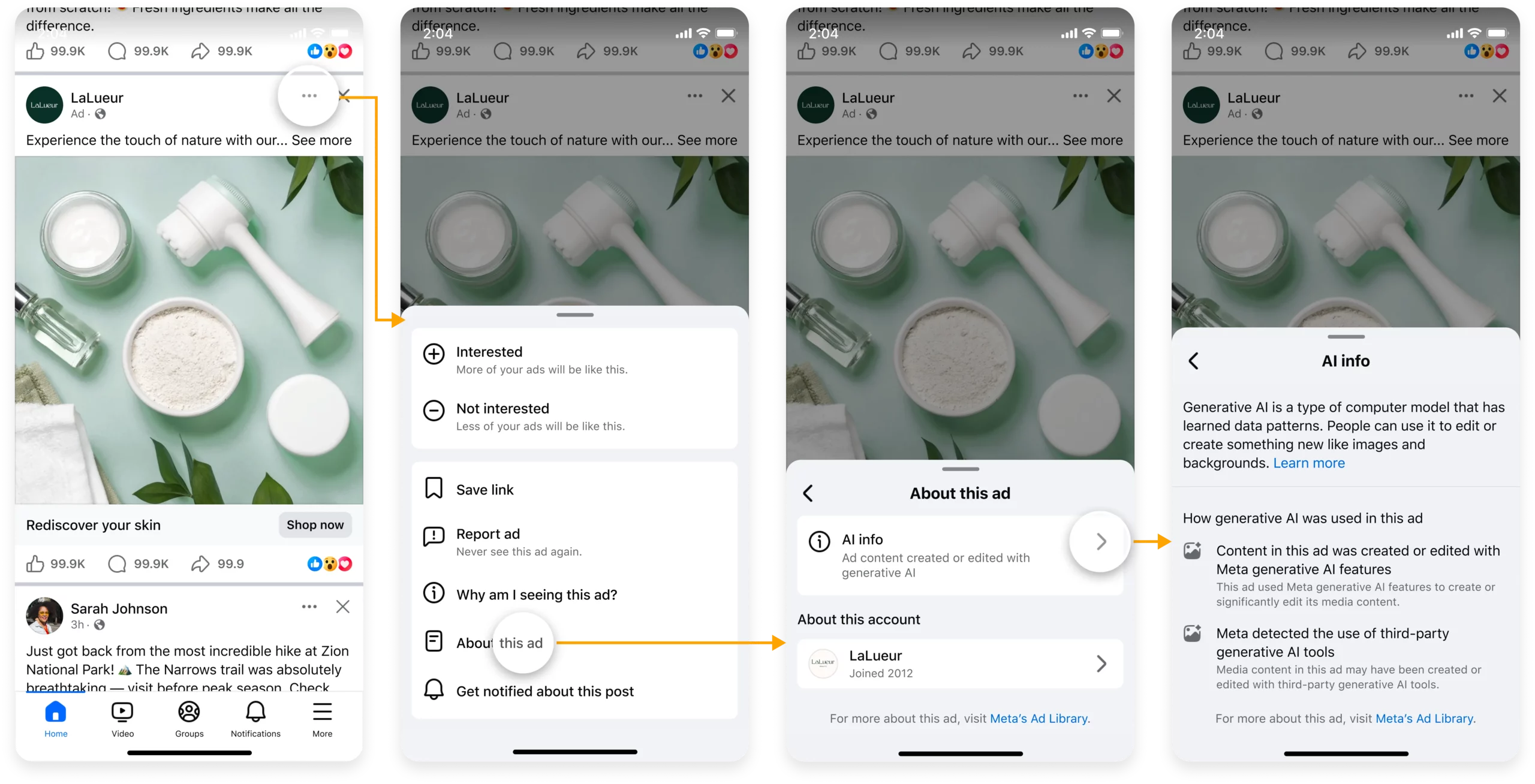
No one will go through those steps, and Meta knows that.
Now, back to the checkbox. There does appear to be a difference in how labels are displayed depending on whether or not you self-disclose AI use.
You may choose to deliver ads to states or countries where local laws or guidelines include specific AI transparency requirements. In some cases, advertisers will have the opportunity to self-disclose that GenAI was used and if they do so, the label will appear on the ad next to the Sponsored label. Depending on your region, the AI Info label name or the Sponsored label name may be different.
This is so incredibly confusing. So, Meta will auto-detect AI-altered images and videos. In those cases, the label will be buried. But if you run your ads in regions where laws require disclosure (currently, these regions include California, New York, India, and Taiwan), it would appear that the checkbox is necessary. And when checked, the AI label will be much more obvious.
It’s also possible that such legislation isn’t as broad as covering all AI-generated and altered images and videos. I’m not a lawyer, but my understanding is that at least some of this specifically addresses fabricated humans.
My advice: Play it very safe. If you’re using AI to generate or alter creative, check the box until we know more.
I haven’t created a new ad that had the checkbox available yet, but I’ll certainly play it on the safe side when I do.
2. Creative Testing Tool Limit Increased to Seven Ads
Meta introduced the Creative Testing Tool in 2025. In the initial version I had, it allowed advertisers to test between two and five ads at once.
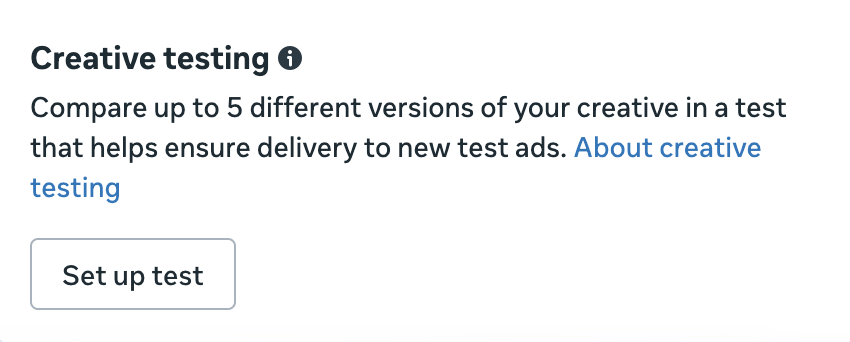
I had heard of some advertisers having the option to test up to 10, but I’ve increasingly seen reports of testing up to seven. And now I have that latest version.
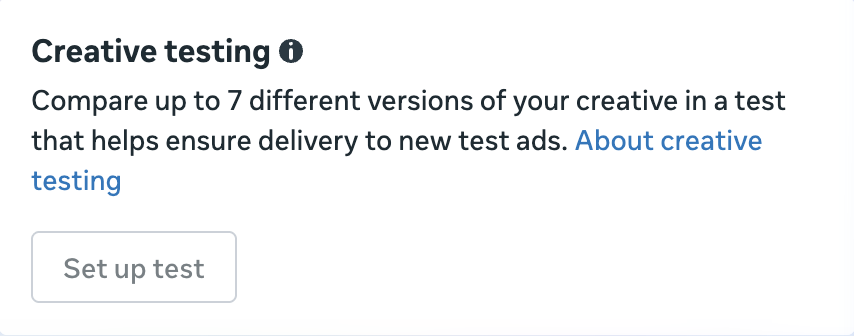
Is this what Meta’s doing now? For what it’s worth, official documentation still reflects up to five.
Personally, I’m using this feature far less often than I was originally. In the beginning, I’d use the creative testing tool whenever I published a new batch of ads. One reason I did this is because you could only test new ads, not existing ones. So if I was ever curious about an ad that didn’t get delivery, it was too late.
But then Meta introduced the feature to push delivery to an ad. It steals much of the same functionality from the creative testing tool, but without the test. And you push delivery to only one ad at a time.
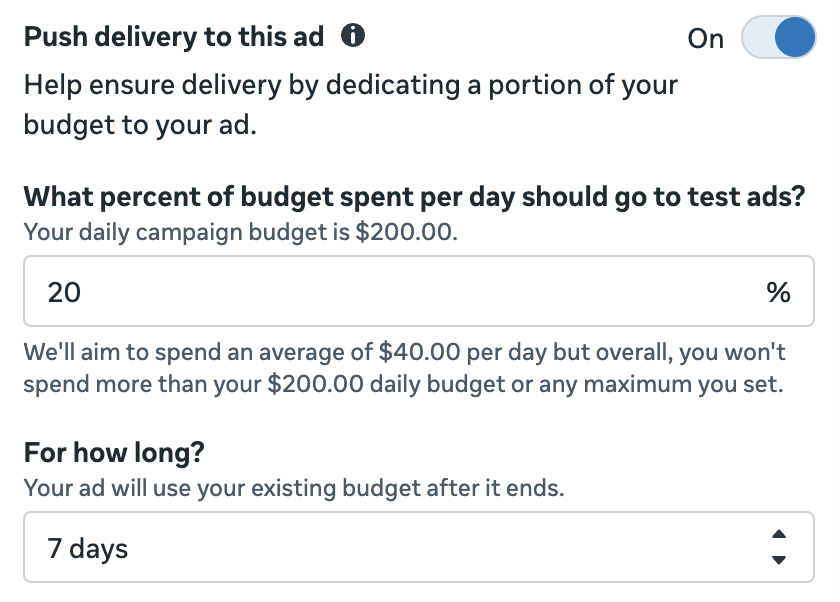
So if you already use the creative testing tool for typical creative testing opportunities, just know that you may now have the option to test seven ads at a time.
3. Interactive Experiences Example
I’ve started seeing a new section for Interactive Experiences when creating new ads.
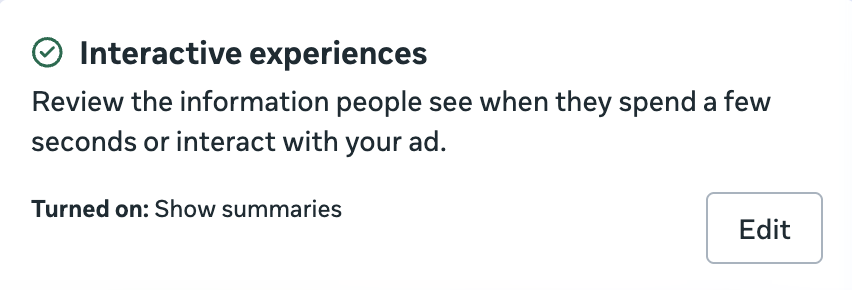
In this example, “Show Summaries” is turned on. I don’t believe that this particular feature is new, but I haven’t covered it before. It’s also not clear what other features are part of Interactive Experiences, or what determines which are available.
Anyway, click “edit” for more info.
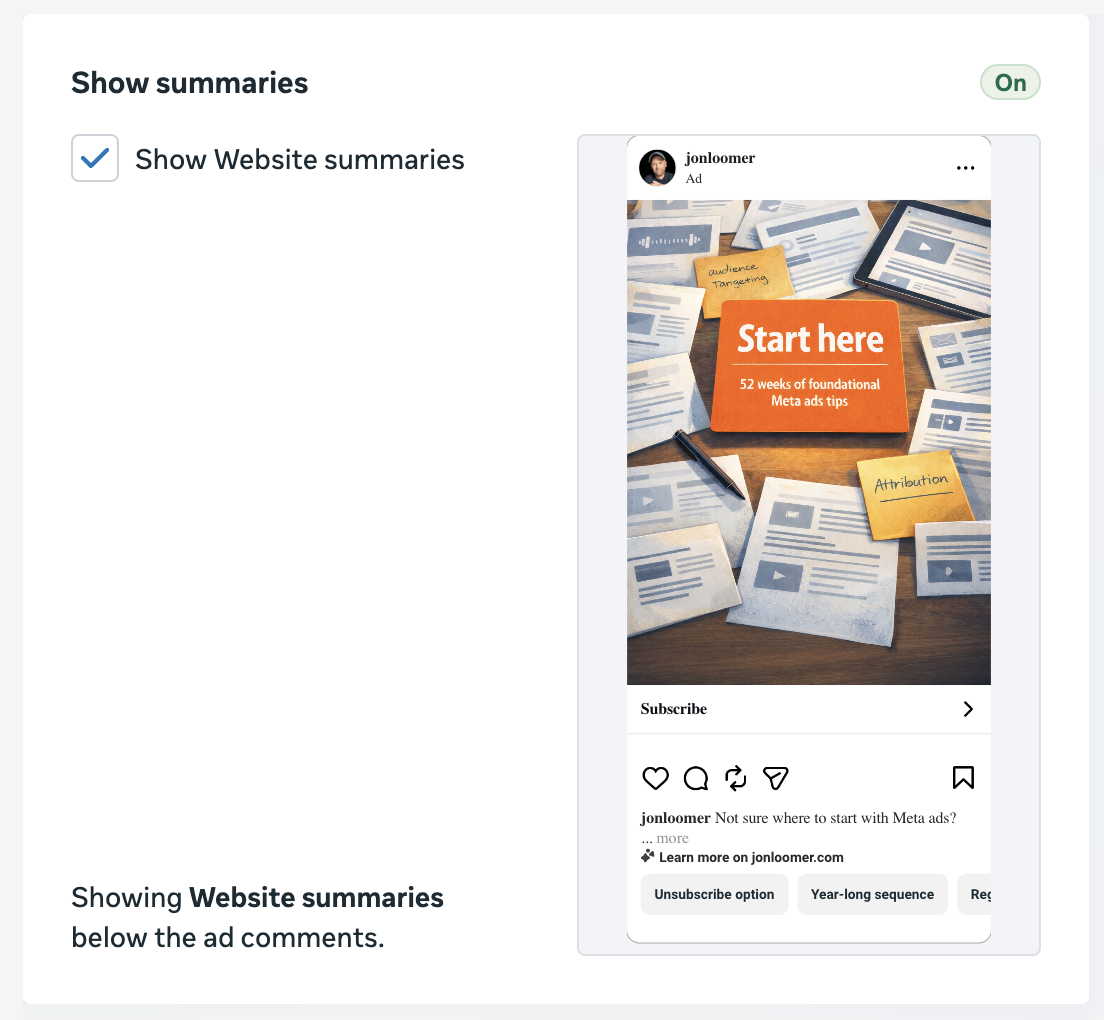
This is where you can turn the feature off. Otherwise, you get a preview of how it will work.
Show Summaries will use AI to pull information from the destination URL. Keywords for those summaries are then displayed under the ad. On the right, you can view all of the potential summaries that might be used in your ad.
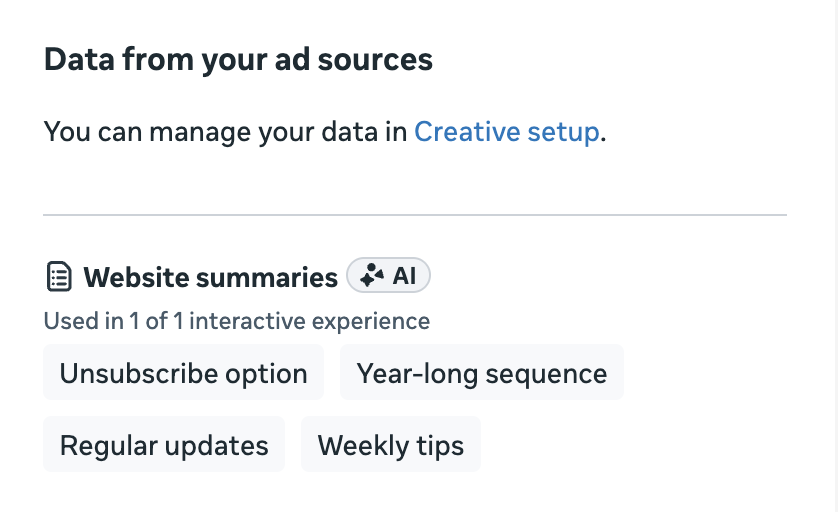
For my ad promoting the Cornerstone Advertising Tips subscription, Meta highlights the following:
- Unsubscribe option
- Year-long sequence
- Regular updates
- Weekly tips
I don’t recall seeing such a preview before. Being able to view it gives me far more confidence in using the feature in the future.
4. Instant Forms Lead Nurturing
I admittedly haven’t been using instant forms for lead generation lately, so I’ve mostly ignored the emergence of the Instant Form Lead Nurturing section when creating an ad.
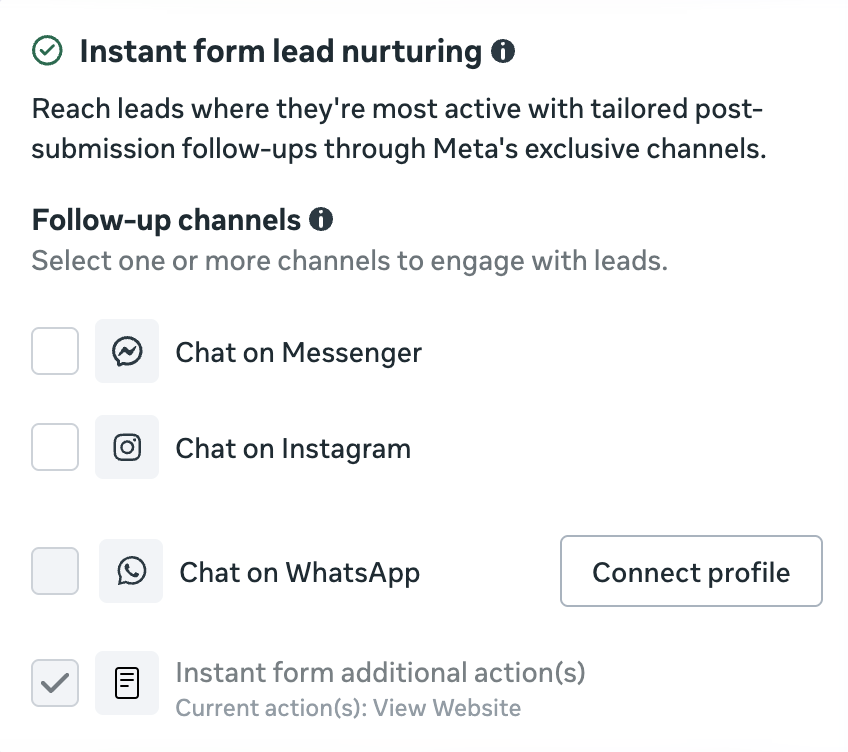
Here’s how Meta describes it:
Start custom follow-up conversations through Meta’s exclusive communication channels to strengthen connections and build trust with leads right after form submission. Follow-ups will be limited to leads whenever conditional logic is active.
Based on this description, you need to use conditional logic in the form for this to work (I’m not entirely sure why). It’s also unclear how this is different from the “Start Conversation on Messenger” checkbox at the end of the form.
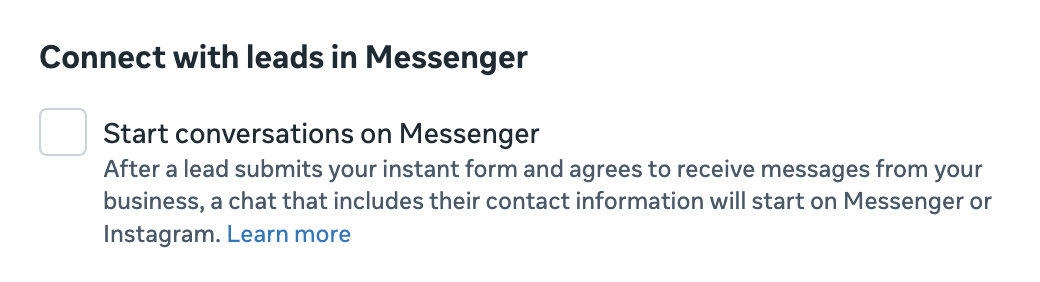
That checkbox isn’t new, though it’s possible I had the test version for a while. Regardless, I have to assume that these are somehow two completely different features.
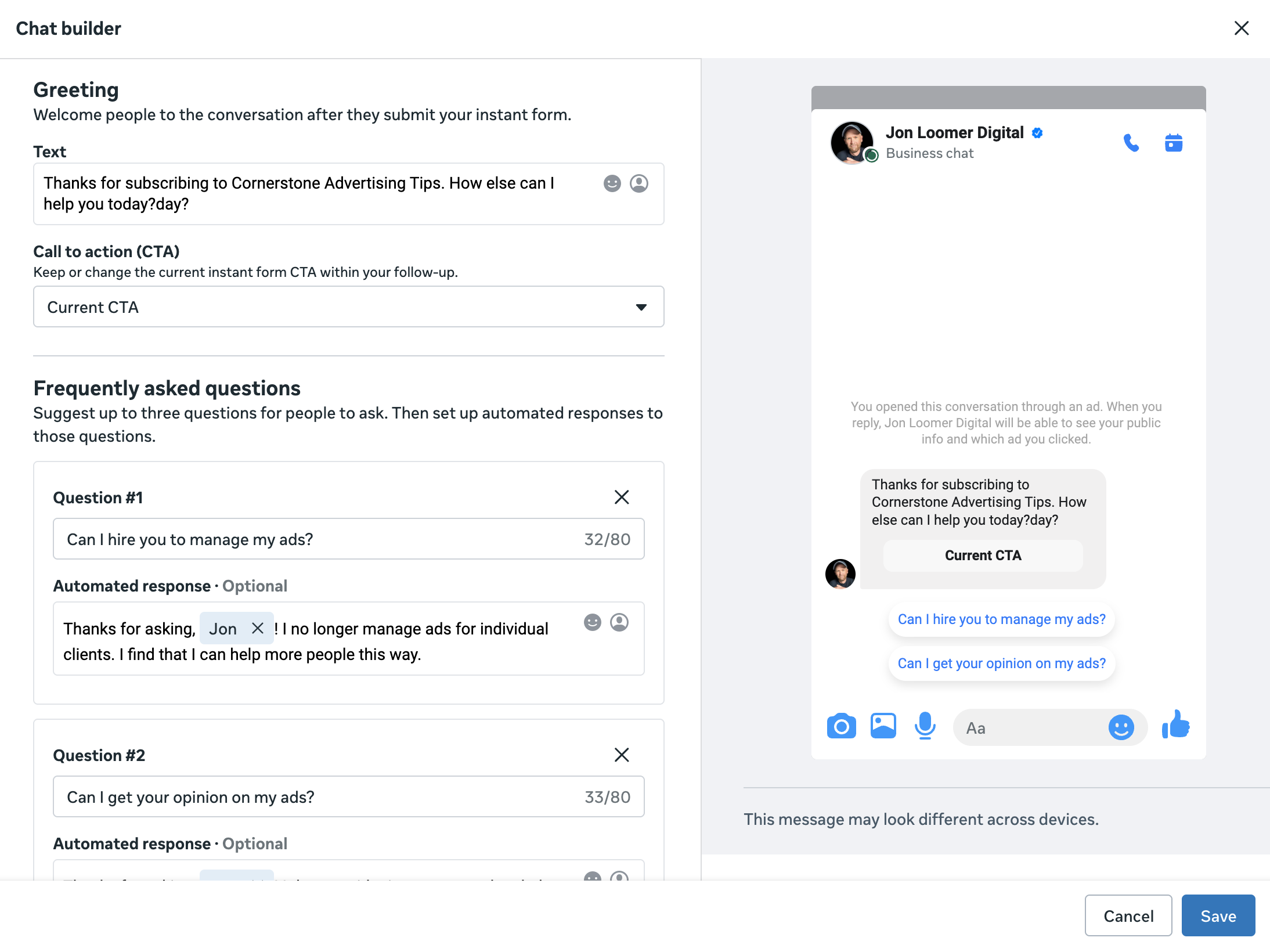
Confusion aside, this is a helpful feature. You can immediately initiate a chat with new leads on any of three platforms (Facebook Messenger, Instagram, or WhatsApp). And when selected, you can customize how that conversation starts. When any of those boxes are selected, the Chat Builder interface appears below.
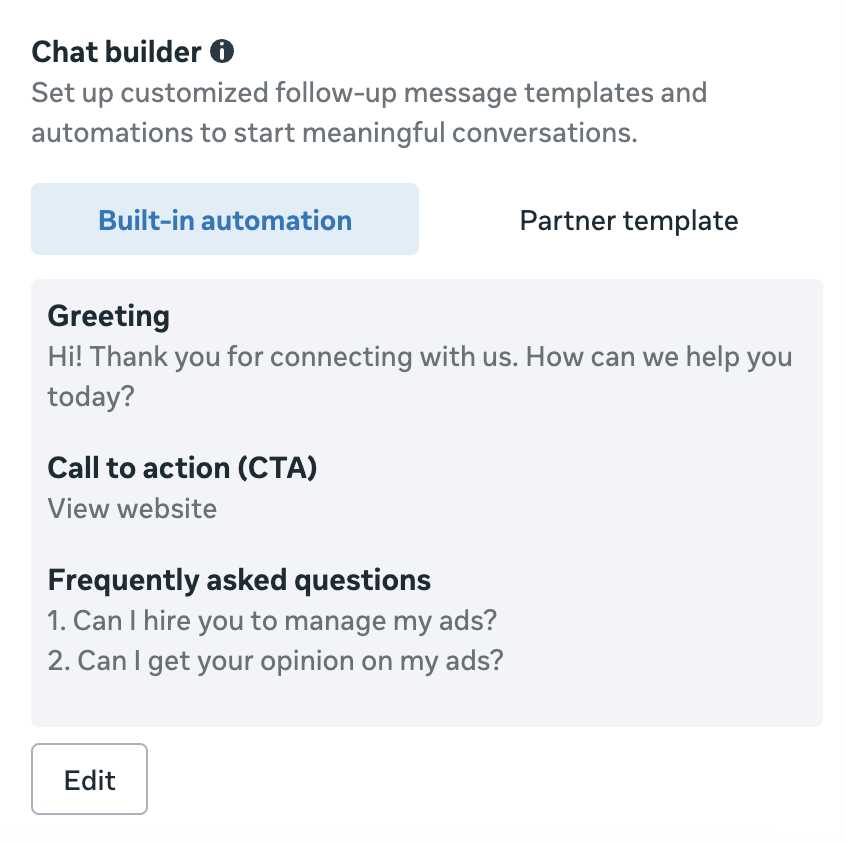
The builder allows you to customize the greeting, CTA, and frequently asked questions that are displayed.
5. 30-Day Click and View Attribution for ChatGPT Ads?
I’ve been part of the ChatGPT ads beta ever since OpenAI made it more broadly available. Something that’s been a mystery from the beginning is how OpenAI defines conversion attribution.
For example, Meta has a standard attribution definition of 7-day click-through, 1-day engage-through, and 1-day view-through. There are also tools for viewing conversion results in different ways (28-day click, incremental attribution, first and all clicks, etc.). While it’s certainly complicated, we understand how various types of conversions are defined.
That hasn’t been the case with ChatGPT ads. I haven’t found anything in OpenAI documentation indicating a click or view conversion window for reporting (I don’t have the option for conversion optimization yet).
But I stumbled on something that either changed recently or I didn’t notice originally. Setting up web tracking is similar to Meta in that you first set up the base pixel to fire on every page and then create individual events. One major difference is that when creating the event, you define the conversion window.
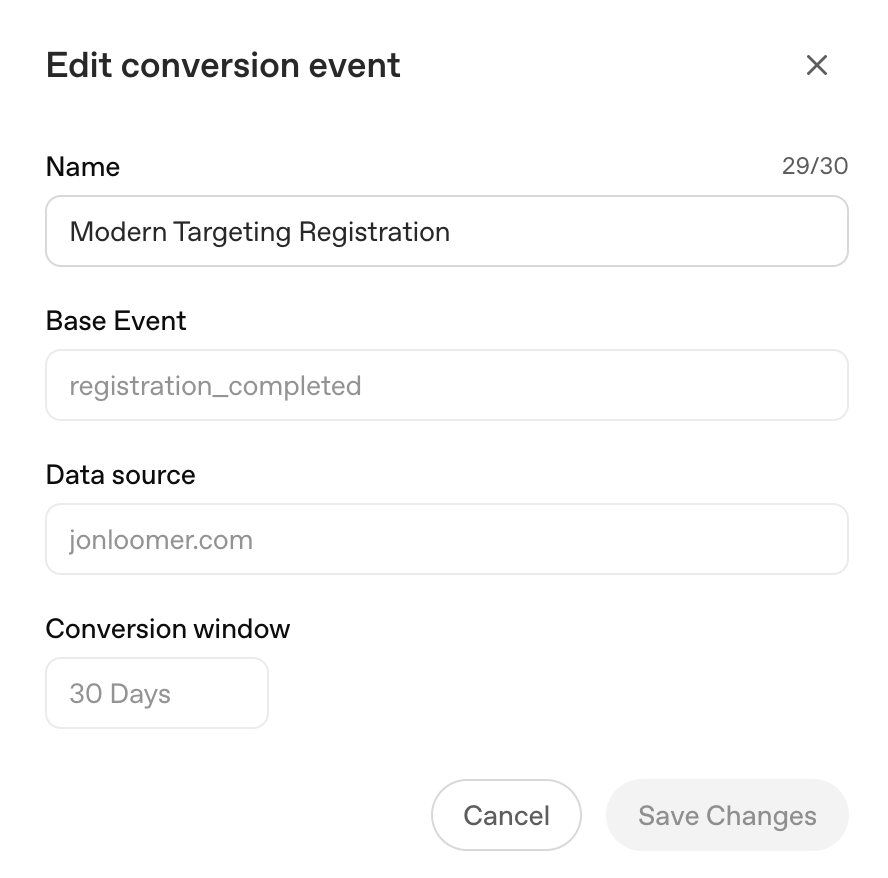
The example above is an event I created several weeks ago. You’ll notice that the conversion window is set to 30 days. Is that clicks? It doesn’t say.
But when I create a new event today, more info is included: “Define how long after a click or impression to count conversions.”
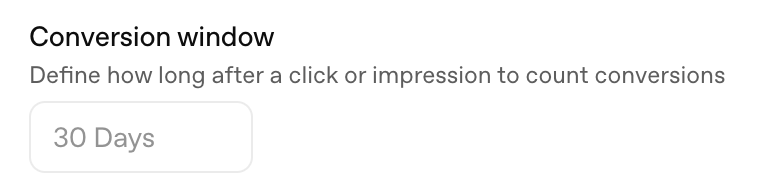
There’s a lot to digest here. Why are we defining the conversion window by event? And am I right reading this to mean that the default conversion window is 30-day click AND 30-day view?
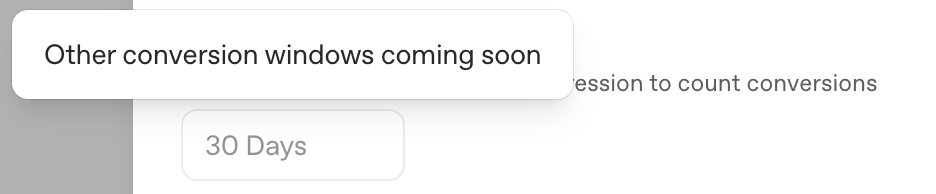
Note that the 30-day selection is default and you can’t change it (for now). When you hover, there’s a message indicating that more options will be available later.
When creating a conversion event for Meta, you simply define when a conversion happened (confirmation page, form submission, whatever). The windows can be manipulated in the ad set or in reporting.
But if I’m reading this right, OpenAI wants us to create entirely different events for various conversion windows. This feels so backwards.
Then again, a lot of the beta Ads Manager has felt poorly planned and explained. They’re building the airplane while it’s in flight.
Your Turn
What do you think about these updates?
Let me know in the comments below!