


Any screenshots and details of functionality may no longer be relevant.
Back in August, I wrote about how you could merge Facebook Pages after converting a personal profile to a business Page. Well, Facebook has switched things up again.
The Facebook Help Center has been updated on how to merge Pages. Before we get to that, a few things you should know:
- The Pages being merged must represent the same thing
- You can only merge Pages with fewer Likes into the one with more Likes
- If you’re merging Pages with a location, they must have the same address information
- Merging Pages combines all of your Likes and check-ins
- All other content from the Page(s) with fewer Likes (wall posts, photos, username) will be permanently deleted
- Content on the Page with more Likes will remain unchanged, except for the addition of likes and check-ins added from the Page(s) with fewer Likes
- The Page(s) with fewer Likes will be removed from Facebook and you will not be able to unmerge it
- You must manage all of the Pages being merged (duh)
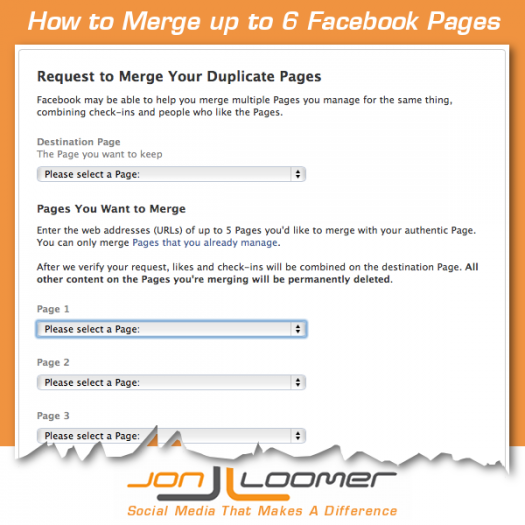
Okay, got it? Now let’s merge stuff. To access the merge tool, do this…
- Of the Pages you want to merge, go to the admin panel of the Page with the most Likes
- Edit Page > Update Info
- Click Resources
- Click “Request to merge duplicate Pages”
Then…
- Select the Page that has the most Likes as the Destination Page
- Select up to five Pages to merge into the Destination Page
- Enjoy the merge
I’ve never done this, but it appears there will be some approval process once you submit the Pages. This makes sense given the rules at play.
This is a good opportunity for anyone who has created multiple Pages in error. Just make sure you control them all and that they have the same or similar name and the same physical address.
Good luck!